
You end up with Open WebUI in Docker behind Caddy with automatic HTTPS: one private chat front-end for any OpenAI-compatible API, with closed sign-ups, user accounts and nightly backups. The article recommends Orbit ($7.99/mo: 2 vCPU, 4 GB RAM, 50 GB SSD), where idle Open WebUI measured about 1.0 GiB of RAM. Setup takes about 30 minutes.
It is a front-end, not a model host. The model runs at your provider and each prompt still goes there. Your history, accounts and keys stay on your server.
Orbit is the comfortable fit. Idle use measured about 1.0 GiB for Open WebUI plus 60 MB for Caddy, leaving 2.8 GB free. Flare would fit the idle figure with little headroom; we didn't run it.
Keep sign-ups closed. Add people from the Admin Panel. Never set WEBUI_AUTH to false: an open chat box on your API key is an open tap.
Admins can read users' chats by default. Set ENABLE_ADMIN_CHAT_ACCESS to false if you share the server, and tell people which you chose.
Back up data and .env, minus the cache. Excluding the model cache cut our archive from 805 MB to 32 KB and the stop from a minute to 3 seconds.
Self-hosting Open WebUI gives you one chat interface for every AI model you pay for, with your own login, your own history and accounts for the people you choose to share it with. You'll run it in Docker behind automatic HTTPS, keep sign-ups closed, connect a hosted API and set up backups in about 30 minutes.
Using an AI coding agent? There's a ready-made prompt at the end of this guide. Copy that instead of this article.
What this setup is, and what it isn't
Open WebUI is a web chat interface. It stores your conversations, users and settings, and talks to model servers over an API. It does not run a model itself. Here the model runs at a provider such as OpenAI, OpenRouter, Mistral or Groq, which you pay per use. Anything with an OpenAI-style API connects.
Our guide to running Ollama with Open WebUI covers inference on the server's own CPU. Nothing heavy runs on your VPS here.
Be clear about what "private" means. Your history, accounts and keys live on your server. Each prompt still goes to your provider. If prompts must never leave your machine, you want local models.
What you'll need
- A PrivateByte VPS. We recommend Orbit ($7.99/mo: 2 vCPU, 4 GB RAM, 50 GB SSD).
- A domain name you control the DNS for.
- An API key from a provider, ideally with a monthly spend limit.
- About 30 minutes.
Open WebUI publishes no official RAM minimum, and its docs call 1 GB "very low" for document features. On an idle Orbit we measured about 1.0 GiB for Open WebUI, 60 MB for Caddy and under 1% CPU, leaving 2.8 GB free. Uploads will use more, so watch docker stats. Flare ($5.99/mo, 2 GB) would fit the idle figure with little headroom. We didn't run it.
Step 1: Deploy your VPS
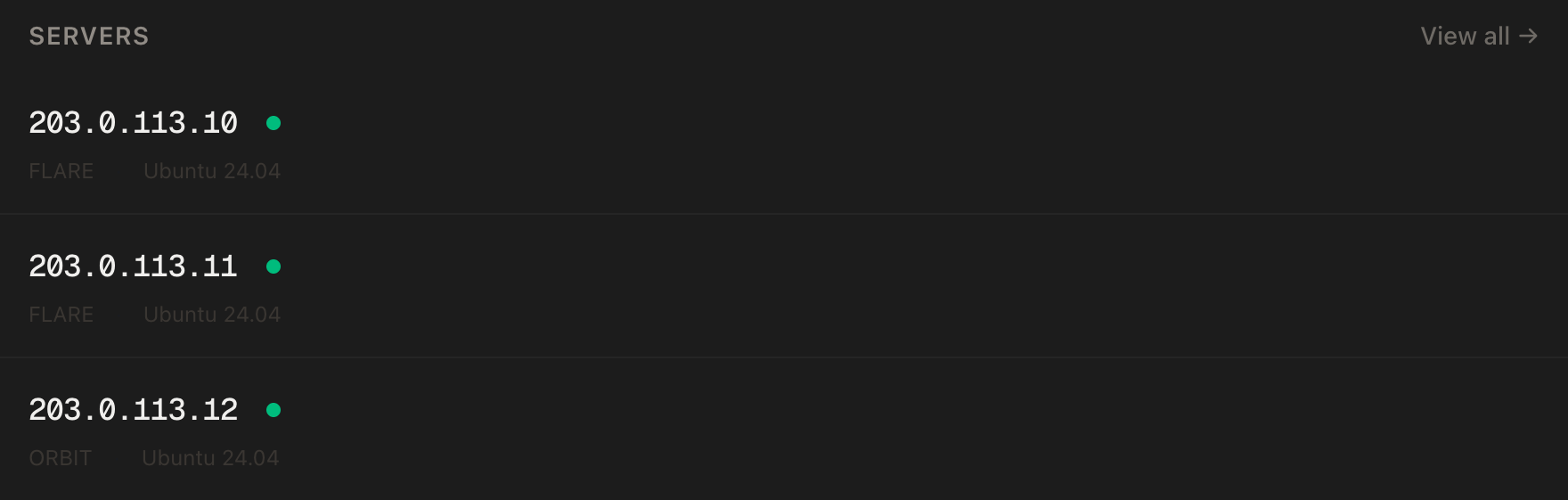
In the PrivateByte dashboard, open the store, choose Orbit, pick Ubuntu 24.04, and deploy. Ready in under 60 seconds.
Step 2: Point your domain at the server
| Type | Name | Value |
|---|---|---|
| A | chat |
your server's IP |
dig +short chat.yourdomain.comThat must print your server's IP before you continue. Caddy needs it to get a certificate.
Step 3: Connect, firewall, Docker
ssh root@YOUR_SERVER_IP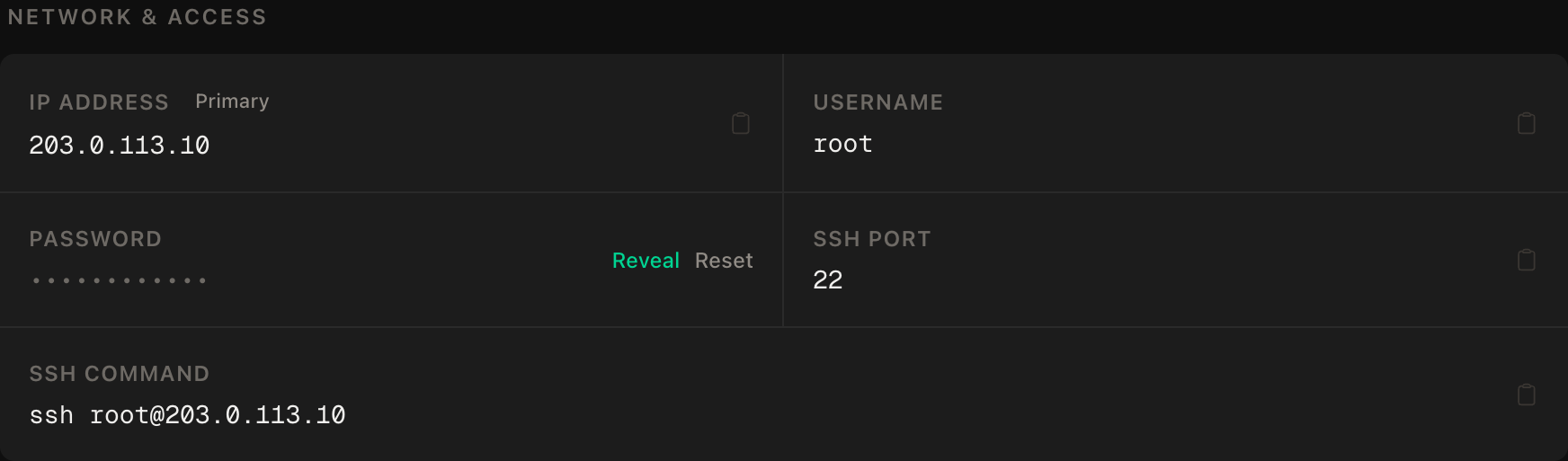
ssh command.SSH first, then the web ports, then enable. Wrong order and you lock yourself out:
apt update && apt upgrade -y
ufw allow OpenSSH
ufw allow 80/tcp
ufw allow 443/tcp
ufw --force enable
Install Docker from Docker's own apt repository (their documentation reserves the one-line convenience script for development and testing):
apt install -y ca-certificates curl
install -m 0755 -d /etc/apt/keyrings
curl -fsSL https://download.docker.com/linux/ubuntu/gpg -o /etc/apt/keyrings/docker.asc
chmod a+r /etc/apt/keyrings/docker.asc
tee /etc/apt/sources.list.d/docker.sources <<DOCKEREOF
Types: deb
URIs: https://download.docker.com/linux/ubuntu
Suites: $(. /etc/os-release && echo "${UBUNTU_CODENAME:-$VERSION_CODENAME}")
Components: stable
Architectures: $(dpkg --print-architecture)
Signed-By: /etc/apt/keyrings/docker.asc
DOCKEREOF
apt update
apt install -y docker-ce docker-ce-cli containerd.io docker-buildx-plugin docker-compose-plugin
Step 4: Write the configuration
mkdir -p ~/openwebui/caddy && cd ~/openwebui
umask 077
echo "WEBUI_SECRET_KEY=$(openssl rand -hex 32)" > .env
echo "OPENWEBUI_TAG=v0.12.3" >> .env
umask 022
WEBUI_SECRET_KEY signs login sessions and, per the docs, encrypts sensitive data at rest. Set it once and keep it: when we changed it, existing sessions got HTTP 401. Treat .env as a secret. The tag is the latest release as we write this, so check the releases page and read its notes. The docs warn that :main can break without notice, hence the pin.
nano docker-compose.ymlservices:
openwebui:
image: ghcr.io/open-webui/open-webui:${OPENWEBUI_TAG:?set OPENWEBUI_TAG in .env}
restart: unless-stopped
environment:
WEBUI_SECRET_KEY: ${WEBUI_SECRET_KEY:?set WEBUI_SECRET_KEY in .env}
volumes:
- ./data:/app/backend/data
caddy:
image: caddy:2-alpine
restart: unless-stopped
ports:
- "80:80"
- "443:443"
volumes:
- ./caddy:/etc/caddy:ro
- caddy_data:/data
- caddy_config:/config
volumes:
caddy_data:
caddy_config:Open WebUI has no ports: section. It listens on 8080 inside the Docker network and only Caddy is exposed, which also avoids Docker's firewall-bypass trap. Users, chats and settings land in ./data.
Caddy's image page advises mounting a directory, not the Caddyfile itself, hence ./caddy. The config is one block:
nano caddy/Caddyfilechat.yourdomain.com {
reverse_proxy openwebui:8080
}Use your real hostname. Caddy handles the WebSockets and streaming Open WebUI needs.
A v0.12.3-slim tag exists, which we didn't test. It drops the local embedding models, so document retrieval needs an external embedding provider.
Step 5: Start it and create your account
docker compose up -d
docker compose ps
docker compose logs caddy | tail -20
The first run pulls 6.4 GB of images, 93 seconds for us, and disk use rose by about 9 GB. Both containers should run, and Caddy's log should include certificate obtained successfully. Repeated failures usually mean DNS hasn't propagated. Wait, then restart Caddy.
Open https://chat.yourdomain.com. The first start downloads a 0.9 GB embedding model into ./data/cache, so allow about a minute, and expect a 502 until then. The first account created becomes the administrator, so create yours now, before you share the address. Our Caddy log showed a stranger requesting the site seconds after the certificate arrived. Use a long password from a password manager (Vaultwarden is one you can host). Sign-ups then close by themselves.
Step 6: Connect a provider
Open the avatar menu, then Settings, Admin, Connections. A fresh install already lists an OpenAI entry for https://api.openai.com/v1 with no key, plus an Ollama entry for a host that doesn't exist here, which you can switch off. For OpenAI, use the gear on the existing entry and paste your key. For another provider, press the + beside Manage OpenAI API Connections, then enter the base URL from their documentation, usually ending in /v1, and your key. Saving tests nothing, so press Verify Connection, the refresh icon beside the URL. A dead address gave us "Network Problem" and a local stub gave "Server connection verified". We had no provider key, so a real one is untested. Verify calls the models endpoint, which some providers lack even when chat works. All models it lists are offered by default, so fill Model IDs under Advanced only to limit the list.
Anthropic works through the same screen with https://api.anthropic.com/v1, but it calls that endpoint mainly for testing, and PDFs, citations and prompt caching need its native API.
Add as many connections as you like. Their models share one picker, which is the real value here.
An environment route exists for the first start only, with OPENAI_API_BASE_URLS and OPENAI_API_KEYS as semicolon-separated lists. We didn't test it, and the database wins afterwards. This guide uses the interface and keeps the key out of your Compose file.
Step 7: Users, roles and sign-ups
Accounts have one of three roles. Admin controls everything. User is the normal role. Pending can log in but can do nothing until an admin approves it.
To add someone, open the avatar menu, Admin Panel, Users, and choose Add User. They get the role you pick and sign-ups stay closed. The alternative is Settings, Admin, Authentication: switch New Sign Ups on, let them register, promote them from Pending under Users, then switch it off. In our test they arrived as Pending and could do nothing until promoted. Leave DEFAULT_USER_ROLE on pending.
Tell invitees two things. Their messages are spent from your API key, so set a provider limit. And admins can read other users' chats by default. Adding ENABLE_ADMIN_CHAT_ACCESS: "false" to the openwebui environment turns that off, API requests included since 0.12.0. We tried both: by default an admin could list a user's chats, and with it false the request was refused. Say which you chose.
Never set WEBUI_AUTH to false. It disables logins, and the docs warn you can't switch back. An unauthenticated chat box wired to your API key is an open tap for the internet.
The default database is SQLite, which suits one person or a very small group. The docs call PostgreSQL mandatory for multi-user use and say data isn't migrated between the two, so decide before a team has data.
Step 8: Backups that leave the box
Everything lives in ./data, and the key that protects the sensitive parts lives in .env. Back up both, stopping the container briefly, because SQLite runs in write-ahead-log mode and copying a busy database can give an inconsistent file. Skip data/cache, which only holds the embedding model. With it our archive was 805 MB and the stop lasted a minute. Without it, 32 KB and 3 seconds.
nano ~/openwebui/backup.sh#!/bin/bash
set -eo pipefail
umask 077
cd /root/openwebui
mkdir -p backups
trap 'docker compose start openwebui' EXIT
docker compose stop openwebui
tar czf "backups/openwebui-$(date +%F).tar.gz" --exclude=data/cache data .env
find backups -name 'openwebui-*.tar.gz' -mtime +14 -deletechmod 700 ~/openwebui/backup.sh
~/openwebui/backup.sh
ls -lh ~/openwebui/backups
(crontab -l 2>/dev/null; echo '0 3 * * * /root/openwebui/backup.sh >> /root/openwebui/backup.log 2>&1') | crontab -The trap restarts Open WebUI even if the archive fails. Now copy backups off the server, from your own machine:
mkdir -p openwebui-backups
scp root@YOUR_SERVER_IP:~/openwebui/backups/openwebui-*.tar.gz ./openwebui-backups/
PrivateByte's daily server backups sit underneath, but your own copy survives losing the account. Treat it like a password file.
We didn't wait for 03:00 to see cron fire. To restore, stop the container, move data aside rather than deleting it, extract the archive and start again:
cd ~/openwebui
docker compose stop openwebui
mv data data.old
tar xzf backups/openwebui-YYYY-MM-DD.tar.gz data
docker compose start openwebui
Allow about a minute for the model to download again. In our test the admin account came back and a user added after the backup was gone. Delete data.old once satisfied.
Step 9: Updates
cd ~/openwebui
./backup.sh
nano .env
docker compose pull
docker compose up -d
docker compose logs --tail 30 openwebui
Edit OPENWEBUI_TAG after reading the release notes, and back up first, every time. The docs say migrations are one-way, so a rollback needs the previous tag and the pre-update backup together. We ran it with an unchanged tag, a no-op.
Automatic updaters can break on migrations, so update by hand.
Verify it works
- HTTPS and login.
https://chat.yourdomain.comloads with a padlock and asks you to sign in. - It talks to the provider. Send a one-line message. A reply means the connection works. We couldn't test this.
- Sign-ups are closed. In a private browser window, the login page should offer no way to register. For a stricter check, run this from your own machine, but only after your admin exists, because on a fresh install it would create the administrator:
curl -s -w ' HTTP %{http_code}\n' -X POST https://chat.yourdomain.com/api/v1/auths/signup \
  -H 'Content-Type: application/json' \
  -d '{"name":"x","email":"[email protected]","password":"not-a-real-password-1"}'
It must answer HTTP 403. We got that, and an admin sign-in still returned 200.
- Internal health.
docker compose exec openwebui curl -s http://localhost:8080/healthreturns{"status":true}. - Negative control: not exposed directly. From your own machine:
curl -m 5 http://YOUR_SERVER_IP:8080This must fail or time out, and so must port 3000. Both timed out for us. If either answers, something is published that should not be.
- A backup is readable.
tar tzf ~/openwebui/backups/openwebui-*.tar.gz | grep -E 'webui.db$|^\.env$'prints both lines. - It survives a reboot.
reboot, wait a minute, load the site. Ours answered over HTTPS about 40 seconds later.
Troubleshooting
The model list is empty or slow. Per the docs, an unreachable endpoint adds a ten-second wait, which we didn't reproduce. Fix or remove bad addresses in Admin, Connections.
Replies appear all at once or never update. The docs tie failing WebSockets to CORS. Look for "is not an accepted origin" in docker compose logs openwebui and add your URL to CORS_ALLOW_ORIGIN (semicolon-separated). We didn't reproduce this.
Certificate errors. dig +short chat.yourdomain.com must return your IP, ports 80 and 443 must be open, and docker compose logs caddy says what failed.
The server is slow or swapping. Check docker stats and free -m. Uploads are the heavy feature, so use an external embedding provider or a bigger plan.
Changing ENABLE_SIGNUP or a provider key in Compose did nothing. Expected: the database wins after first launch. Use the Admin screens.
Do it with an AI agent
If you'd rather hand this to Claude Code, Cursor or another coding agent, don't paste the article at it. Agents skim warnings and lose ordering. Copy this instead and run it from your own machine with SSH access.
Prompt for an AI agent
Set up Open WebUI as a front-end for hosted AI APIs on a fresh Ubuntu 24.04 VPS,
using Docker and Caddy for automatic HTTPS. No local models.

FILL IN BEFORE YOU START:
- SERVER_IP = <VPS IP from the PrivateByte dashboard>
- DOMAIN    = <e.g. chat.example.com>
- TAG       = <an Open WebUI release tag such as v0.12.3; check
              https://github.com/open-webui/open-webui/releases for the latest>
- The admin account, every provider API key and the user list are MINE.

WHAT TO DO:
1. FIRST, "dig +short DOMAIN" must return SERVER_IP. If not, STOP.
2. SSH to root@SERVER_IP. Confirm Ubuntu 24.04 and report "free -m" and "df -h /".
3. apt update && apt upgrade -y. Firewall in THIS ORDER: ufw allow OpenSSH;
   ufw allow 80/tcp; ufw allow 443/tcp; ufw --force enable.
4. Install Docker Engine from Docker's apt repository for Ubuntu
   (docs.docker.com/engine/install/ubuntu), not the get.docker.com script.
5. mkdir -p ~/openwebui/caddy. With umask 077, write ~/openwebui/.env with
   WEBUI_SECRET_KEY=<output of openssl rand -hex 32> and OPENWEBUI_TAG=TAG.
   Do not print the file.
6. Write ~/openwebui/docker-compose.yml with: openwebui
   (ghcr.io/open-webui/open-webui:${OPENWEBUI_TAG}, WEBUI_SECRET_KEY from .env,
   volume ./data:/app/backend/data, NO ports section) and caddy (caddy:2-alpine,
   ports 80 and 443, ./caddy mounted at /etc/caddy read-only, named volumes for
   /data and /config).
7. Write ~/openwebui/caddy/Caddyfile:
       DOMAIN { reverse_proxy openwebui:8080 }
8. docker compose up -d
9. STOP. Tell me to open https://DOMAIN, create the first account (it becomes
   the administrator) and add my provider under Settings > Admin > Connections.
   WAIT for me to confirm. Never ask me to paste an API key to you.
10. Write ~/openwebui/backup.sh: umask 077; cd /root/openwebui; mkdir -p backups;
    trap to "docker compose start openwebui" on EXIT; docker compose stop
    openwebui; tar czf backups/openwebui-$(date +%F).tar.gz --exclude=data/cache
    data .env; delete
    backups older than 14 days. chmod 700 it, run it once, and add a root cron
    line at 03:00 appending output to /root/openwebui/backup.log.

RULES:
- Never print, cat or log .env or anything under ~/openwebui/data. To check a
  value is set, check it is non-empty.
- Do not publish any port for openwebui. Only Caddy is exposed.
- Never set WEBUI_AUTH=False. Never enable sign-ups. Never create accounts.
- The ufw ordering is not optional.
- Nothing destructive. If ~/openwebui exists or containers are already
  running, STOP and ask.
- Do not use :main or :latest. Use the pinned TAG.
- Do not run chat requests on my behalf or add providers.

VERIFY, AND SHOW ME THE OUTPUT OF EACH:
- "docker compose ps" -> openwebui and caddy running
- "docker compose logs caddy | tail -20" -> certificate obtained
- "curl -sI https://DOMAIN" -> HTTP 200 and a TLS handshake
- "docker compose exec openwebui curl -s http://localhost:8080/health" -> JSON status
  (the first start downloads a 0.9 GB model: retry for up to 2 minutes, a 502 until
  then is normal)
- THE NEGATIVE CONTROL, from MY machine: "curl -m 5 http://SERVER_IP:8080" and the
  same for port 3000 -> both MUST fail or time out. If either answers, stop.
- After I create my account: tell me to open DOMAIN in a private window and
  confirm there is no way to register. Report what I tell you.
- run backup.sh; "tar tzf" the newest archive piped to grep -E 'webui.db$|^\.env$'
  -> prints both, and
  "docker compose ps" shows openwebui running again
- reboot, wait 60 seconds, "docker compose ps" -> everything back

Do not tell me a step succeeded without showing the command output that proves
it. If a verification fails, stop and report the actual error. Do not retry
silently and do not improvise a workaround, especially around the firewall or
the port bindings.
Two guardrails are worth stealing. The agent never sees your key or creates the admin account, because whoever registers first owns the instance. And only the refused port proves nobody else can reach it.
For automation that calls the same APIs, see self-hosting n8n.
Deploy your VPS
Your own chat window for every model you use, with accounts you control and history you keep.
The Orbit plan is the size we'd pick: enough memory for Open WebUI and a few people. Flare is tight, and Comet is more than a hosted-API front end needs.
- Unmetered bandwidth, no overage
- Free DDoS protection
- Daily automated backups
- Browser console access
Common questions
Do I need a GPU or a big server? No. The model runs at the provider, so this is a web app with a database. Memory matters most for document uploads.
Which providers work? Anything with an OpenAI-compatible API, such as OpenAI, OpenRouter, Mistral, Groq or DeepSeek. We tested none. Anthropic works too, with Step 6's caveats.
Is it private? Your data stays on your server, but prompts go to your provider and admins can read chats unless you turn that off.
Can my team use it without sharing my API key? Yes. People use their own accounts and never see the key, but their usage is spent from it. Set a limit at the provider.
Can I add local models later? Yes. Open WebUI can connect to an Ollama server. Our Ollama guide covers the CPU-speed reality first.