Running your own AI chat on a VPS gives you a private assistant with no per-token bill, no rate limits, and no conversation leaving a machine you control. Ollama handles the models and Open WebUI gives you a familiar chat interface in the browser. About 30 minutes — and one honest conversation about speed before you start.
Using an AI coding agent? There's a ready-made prompt at the end of this guide. Copy that instead of this article.
Read this before you buy anything
Most guides on this topic skip straight to the commands. This one shouldn't, because there is a limitation you need to know first and it is not small.
These servers have no GPU. Inference runs on the CPU. That works, and it works better than people expect for small models, but it is nothing like the speed you get from a hosted frontier model. Expect a few tokens per second on a 7B model — readable, roughly the pace of someone typing, not instant.
Here is the honest mapping of model size to plan:
| Model class | RAM it needs (4-bit) | Plan | What it feels like |
|---|---|---|---|
1–3B (llama3.2:3b, phi3:mini) |
~2–3 GB | Orbit (4 GB) | Responsive. Good for summarising, drafting, simple Q&A. |
7–8B (llama3.1:8b, mistral) |
~5–6 GB | Comet (8 GB) | Usable but deliberate. Noticeably better answers. |
| 13B+ | 10 GB+ | Bigger than we'd sell you for this | Too slow on CPU to enjoy. |
Flare, our cheapest plan, is not on that list on purpose. At 2 GB you are swapping before the model finishes loading, and swapping to disk during inference is the difference between slow and unusable.
And self-hosting is the wrong answer if you want frontier-model quality, you need fast responses, or you'd use it all day. A 3B model is not GPT-class and no amount of hardware here changes that. It is the right answer if you want a private, unlimited, always-available assistant for ordinary work and you care more about the data staying yours than about the last 20% of answer quality.
With that said, if it's what you want, it's genuinely satisfying to own.
What you'll need
- A PrivateByte VPS. We recommend Comet ($15.99/mo: 4 vCPU, 8 GB RAM, 100 GB SSD). Orbit ($7.99/mo, 4 GB) works if you stay on 3B models.
- A domain name you control the DNS for. Needed for HTTPS.
- About 30 minutes, plus model download time.
Step 1: Deploy your VPS
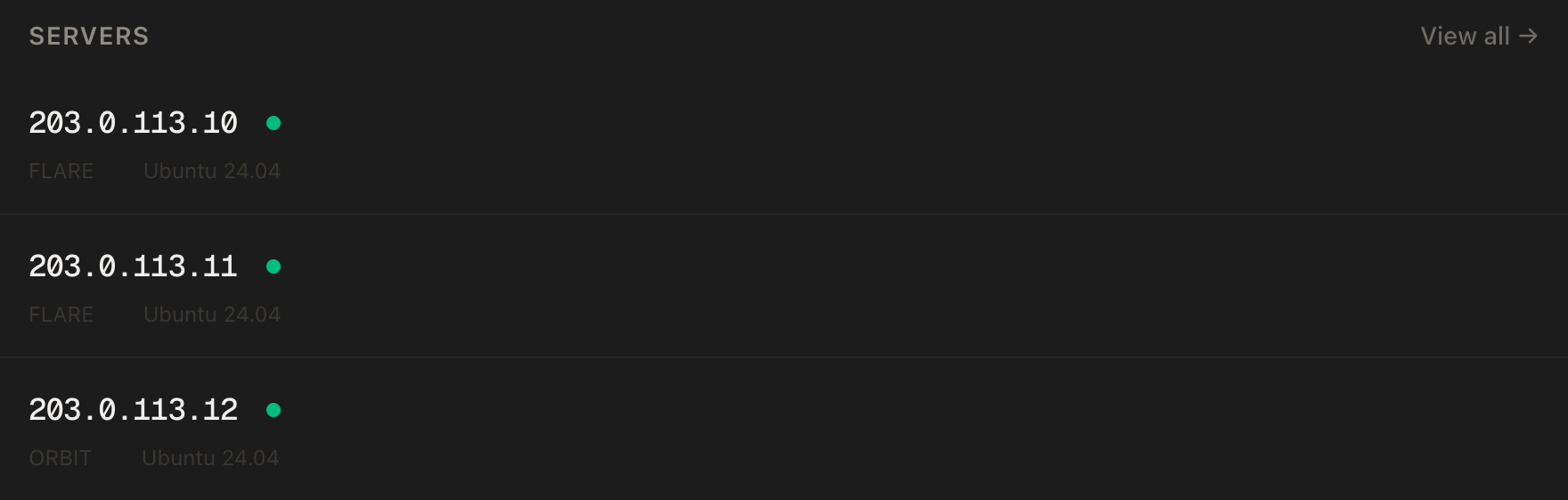
In the PrivateByte dashboard, open the store, choose Comet, pick Ubuntu 24.04, and deploy. Ready in a few minutes.
Step 2: Point your domain at the server
Do this first — DNS propagation takes a few minutes and the HTTPS step fails without it.
| Type | Name | Value |
|---|---|---|
| A | ai |
your server's IP |
dig +short ai.yourdomain.comThat should print your server's IP before you continue.
Step 3: Connect over SSH
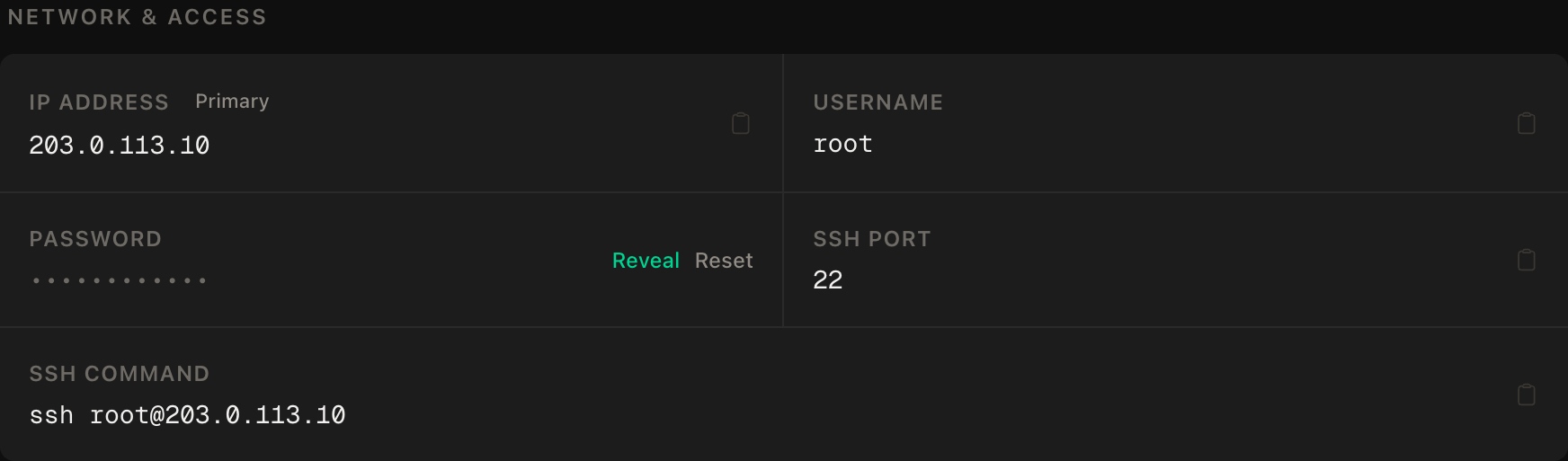
ssh root@YOUR_SERVER_IPWindows users: PowerShell has ssh built in, or use PuTTY. The dashboard also has a browser console if you'd rather install nothing.
ssh command.Step 4: Set up the firewall
SSH first, then the web ports, then enable. Wrong order and you lock yourself out:
ufw allow OpenSSH
ufw allow 80/tcp
ufw allow 443/tcp
ufw --force enable
ufw status
Port 11434 — Ollama's API port — is deliberately absent, and it must stay absent. Ollama has no authentication of any kind. Anyone who can reach that port can use your models, read what you send through them, and pin your CPU at 100% indefinitely. Step 6 widens what Ollama listens on, and this firewall rule is the only thing that makes that safe. The two go together.
Step 5: Install Ollama and pull a model
curl -fsSL https://ollama.com/install.sh | sh
ollama --version
Pull a model. Start small — you can always add more later:
ollama pull llama3.2:3bThat's roughly a 2 GB download. On Comet you can also pull an 8B:
ollama pull llama3.1:8bCheck what you have, and prove inference actually works before adding a web layer on top:
ollama list
ollama run llama3.2:3b "Reply with exactly one word: working"
If that answers, the hard part is already done. Everything after this is plumbing.
Step 6: Let containers reach Ollama
This is the step that breaks most installations, and it fails in a way that looks like something else entirely.
Ollama's installer binds it to 127.0.0.1:11434 — loopback only. Open WebUI runs in a container, and a container reaching the host arrives on the Docker bridge address, not on loopback. So Ollama refuses the connection, and what you see in the browser is an empty model list with no error worth reading. People spend an hour on the model dropdown when the problem is a network bind.
Tell Ollama to listen on all interfaces:
mkdir -p /etc/systemd/system/ollama.service.d
nano /etc/systemd/system/ollama.service.d/override.conf
[Service]
Environment="OLLAMA_HOST=0.0.0.0:11434"systemctl daemon-reload
systemctl restart ollama
ss -tlnp | grep 11434That last line should now show 0.0.0.0:11434 rather than 127.0.0.1:11434.
Read this before moving on. You have just made an unauthenticated API listen on every interface. The firewall from Step 4 is what stands between that and the open internet. You will verify it holds, from outside, in the Verify it works section — and if you skipped Step 4, go back and do it now.
Step 7: Write the configuration
mkdir -p ~/openwebui && cd ~/openwebui
nano docker-compose.yml
services:
openwebui:
image: ghcr.io/open-webui/open-webui:main
restart: unless-stopped
environment:
OLLAMA_BASE_URL: http://host.docker.internal:11434
WEBUI_NAME: My AI
extra_hosts:
- "host.docker.internal:host-gateway"
volumes:
- openwebui_data:/app/backend/data
caddy:
image: caddy:2-alpine
restart: unless-stopped
ports:
- "80:80"
- "443:443"
volumes:
- ./Caddyfile:/etc/caddy/Caddyfile:ro
- caddy_data:/data
- caddy_config:/config
volumes:
openwebui_data:
caddy_data:
caddy_config:The extra_hosts line is the other half of Step 6. On Docker Desktop for Mac and Windows, host.docker.internal resolves automatically; on Linux it does not exist unless you add it, and that is what host-gateway does. Leave it out and the container cannot resolve the name at all — a different failure with the same empty-model-list symptom.
Note Open WebUI has no ports: section. It listens on 8080 inside the Docker network and Caddy is the only thing exposed.
Now the Caddy config:
nano Caddyfileai.yourdomain.com {
reverse_proxy openwebui:8080
}Use your real hostname — Caddy reads this literally.
Step 8: Start it
docker compose up -d
docker compose ps
docker compose logs caddy | tail -20
Both containers running, and a line confirming the certificate was obtained. Repeated certificate failures usually mean DNS hasn't propagated — wait, then docker compose restart caddy.
Step 9: Create your account and close registration
Open https://ai.yourdomain.com. The first account created becomes the administrator, so create yours immediately, before you tell anyone the address.
Then turn signups off — and here is where this differs from most self-hosted apps. ENABLE_SIGNUP is what Open WebUI calls a PersistentConfig variable: the environment is only read on the very first launch, and after that the value lives in the database. Setting it in your Compose file now and recreating the container does nothing at all, while looking exactly like it worked.
Turn it off in the interface instead:
Admin Panel → Settings → General → New Sign Ups → off.
Then verify it in a private browser window: loading your domain should offer a sign-in and no way to register.
Verify it works
Send a message in the chat with a model selected. If it answers, Open WebUI and Ollama are talking to each other over the bridge correctly.
Now the check that actually matters. From your local machine — not the server:
curl -m 5 http://YOUR_SERVER_IP:11434This must fail. A timeout or "connection refused" is the correct, healthy result: it means the firewall is holding and your unauthenticated model API is not reachable from the internet. If it returns Ollama is running, stop and fix the firewall before you do anything else — anyone on the internet can use your server right now.
That pair of results is the whole point: the chat works and the port is closed. Either one alone proves nothing.
Finally, confirm it survives a reboot:
rebootWait a minute, reload the site, and send another message. Ollama's systemd unit and the containers' restart: unless-stopped should bring everything back untouched.
Troubleshooting
The model dropdown is empty. Open WebUI can't reach Ollama. Check ss -tlnp | grep 11434 shows 0.0.0.0 not 127.0.0.1 (Step 6), and that extra_hosts is present in your Compose file (Step 7). Confirm from inside the container: docker compose exec openwebui curl -s http://host.docker.internal:11434 should print Ollama is running.
Answers come back extremely slowly, or the server freezes. The model is bigger than your RAM and you're swapping. Check free -m while it generates. Use a smaller model or a larger plan — there is no third option.
Turning off signups in the Compose file had no effect. Expected. ENABLE_SIGNUP is PersistentConfig and is read from the database after first launch. Change it in Admin Panel → Settings → General.
Certificate errors or the site won't load over HTTPS. Caddy couldn't complete the Let's Encrypt challenge. Confirm dig +short ai.yourdomain.com returns your IP, ufw status shows 80 and 443 open, and read docker compose logs caddy. Port 80 must be open — the challenge uses it even though you browse on 443.
ollama pull fails or runs out of disk. Models are large and they accumulate quietly. Check df -h, then ollama list and remove what you don't use with ollama rm <model>.
The first message after an idle period is very slow, then it speeds up. Normal. Ollama unloads models from memory after a period of inactivity and reloads on demand. The reload is the pause you felt.
Do it with an AI agent
If you'd rather hand this to Claude Code, Cursor, or another coding agent, don't paste the article at it. Articles are written for humans, and agents skim the warnings and lose the ordering. Copy this instead, and run it from your own machine with your agent able to SSH out.
Prompt for an AI agent
Set up Ollama with the Open WebUI front-end on a fresh Ubuntu 24.04 VPS, behind
HTTPS, using Docker and Caddy.

FILL IN BEFORE YOU START:
- SERVER_IP = <VPS IP from the PrivateByte dashboard>
- DOMAIN    = <the subdomain, e.g. ai.example.com>
- MODEL     = <e.g. llama3.2:3b for a 4 GB server, llama3.1:8b for 8 GB>

WHAT TO DO:
1. FIRST, run "dig +short DOMAIN" and confirm it returns SERVER_IP. If not, STOP
   and tell me — the certificate step will fail and everything after it is wasted.
2. SSH to root@SERVER_IP. Confirm Ubuntu 24.04, and run "free -m". Tell me the
   available RAM and whether MODEL realistically fits: roughly 2-3 GB for a 3B
   model, 5-6 GB for a 7-8B, both at 4-bit. If it does not fit, STOP and say so
   rather than proceeding to a server that will swap.
3. Firewall, in THIS EXACT ORDER:
       a) ufw allow OpenSSH
       b) ufw allow 80/tcp
       c) ufw allow 443/tcp
       d) ufw --force enable
   Do NOT open 11434 under any circumstances. Ollama has no authentication.
4. Install Ollama from https://ollama.com/install.sh, then "ollama pull MODEL".
5. Create /etc/systemd/system/ollama.service.d/override.conf setting
   Environment="OLLAMA_HOST=0.0.0.0:11434", then daemon-reload and restart ollama.
   This is required because Open WebUI runs in a container and reaches the host
   over the Docker bridge, not loopback, so the default 127.0.0.1 bind refuses it.
   Confirm with "ss -tlnp | grep 11434" that it now shows 0.0.0.0.
6. Create ~/openwebui/docker-compose.yml with two services: openwebui
   (ghcr.io/open-webui/open-webui:main, OLLAMA_BASE_URL set to
   http://host.docker.internal:11434, extra_hosts entry
   "host.docker.internal:host-gateway", named volume at /app/backend/data, and
   NO ports section) and caddy (caddy:2-alpine, ports 80 and 443, Caddyfile
   mounted read-only, named volumes for /data and /config).
   The extra_hosts line is mandatory on Linux — host.docker.internal does not
   resolve there otherwise.
7. Create ~/openwebui/Caddyfile containing:
       DOMAIN { reverse_proxy openwebui:8080 }
8. docker compose up -d
9. Tell me to open https://DOMAIN and create the first account, which becomes the
   administrator. WAIT for me to confirm before continuing.
10. Tell me to turn off new signups in Admin Panel -> Settings -> General.
    Do NOT try to do this with the ENABLE_SIGNUP environment variable. It is a
    PersistentConfig value, read from the database after first launch, so setting
    it now silently does nothing while appearing to work.

RULES:
- Step 5 widens an unauthenticated API to all interfaces. It is only acceptable
  because step 3 already closed the port. Never do step 5 if step 3 did not
  complete successfully — check "ufw status" before you do it.
- The ufw ordering in step 3 is not optional. Enabling before allowing OpenSSH
  locks me out of my own server.
- Do not pull a model larger than step 2 established will fit.
- Nothing destructive. If ~/openwebui exists or containers are already running,
  STOP and ask.
- Do not send any prompts through the model on my behalf beyond the one
  verification below, and do not configure any external API keys.

VERIFY, AND SHOW ME THE OUTPUT OF EACH:
- "ollama list" -> MODEL present
- "ollama run MODEL 'Reply with exactly one word: working'" -> it answers
- "ss -tlnp | grep 11434" -> 0.0.0.0:11434
- "docker compose ps" -> both containers running
- "docker compose exec openwebui curl -s http://host.docker.internal:11434"
  -> "Ollama is running", proving the container can reach the host
- "curl -sI https://DOMAIN" -> HTTP 200, TLS handshake succeeded
- THE NEGATIVE CONTROL, and you must run this one from MY machine, not the
  server: "curl -m 5 http://SERVER_IP:11434" -> this MUST fail or time out. If it
  returns "Ollama is running", the firewall is not holding and my server is open
  to the internet. Stop everything and tell me.
- reboot, wait 60 seconds, then "docker compose ps" and send one more chat
  message -> everything back up on its own

Do not tell me a step succeeded without showing the command output that proves
it. If a verification fails, stop and report the actual error. Do not retry
silently and do not improvise a workaround, especially around the firewall.
Two things in that prompt are worth stealing for your own agent work. It checks that the model actually fits in RAM before downloading several gigabytes, because the failure mode otherwise is a server that swaps rather than an error you can read. And the last check is a negative control — a test that has to fail to pass. Verifying the chat works proves the app is up; only the test that must fail proves the door is shut, and an agent given only positive checks will happily report success on a wide-open server.
If you want something to feed the model, self-hosting n8n gives you a scheduler and a place to route its output, and running a Python scraper with rotating proxies covers collecting the data in the first place.
Deploy your VPS
A private AI assistant is a genuinely good use of a VPS, as long as you go in with accurate expectations about CPU inference. No per-token billing, no rate limits, and nothing you type leaving your own machine.
The Comet plan is the size we'd actually recommend, because 8 GB is what lets you run a 7–8B model without swapping. Orbit at $7.99 is a fair starting point if you stay on 3B models.
- Unmetered bandwidth, no overage
- Free DDoS protection
- Daily automated backups
- Browser console access
Common questions
How fast is this really, without a GPU? A few tokens per second on a 7B model, and noticeably quicker on a 3B. That reads roughly like watching someone type. It is fine for drafting, summarising and questions you don't need answered instantly, and frustrating if you expected hosted-model speed. Anyone telling you CPU inference feels the same as a GPU is selling you something.
Which model should I start with?
llama3.2:3b on a 4 GB server, llama3.1:8b on 8 GB. Pull one, use it for a day, then try another — swapping models is a single command and they sit side by side.
Is my data actually private? Yes, in the sense that matters: prompts and responses never leave your server, and nothing is logged to a third party. The models themselves are downloaded once from Ollama's registry and run entirely locally after that.
Can several people use it? Yes — Open WebUI is multi-user, with the first account as administrator. Bear in mind that CPU inference handles one request at a time in practice, so a second person's message waits for the first to finish.
Can I connect it to OpenAI or Anthropic models too? Yes. Open WebUI supports OpenAI-compatible endpoints alongside Ollama, so you can keep local models for private work and route to a hosted model when you want more capability. Add the API key in Admin Panel → Settings → Connections.