A dedicated Enshrouded server keeps your world alive when the host logs off, lets up to sixteen players drop in on their own schedule, and takes the load off whoever's gaming PC would otherwise host. This guide builds one on a VPS with Docker in about 30 minutes. It opens with the part most guides skip: on Linux, this server runs through a compatibility layer.
Using an AI coding agent? There's a ready-made prompt at the end of this guide. Copy that instead of this article.
The honest bit first: this is a Windows server
Enshrouded's dedicated server is a Windows program. The developer's help centre says, in effect, that only Windows is supported for now and that Linux support is planned for later. We could not load that page directly while writing this, so check it yourself.
So how does a Linux VPS run it? A community-maintained Docker image downloads the Windows server through SteamCMD and runs it under Wine or Proton. Both are compatibility layers: they translate the Windows program's system calls into Linux ones on the fly. Proton is Valve's Wine bundle, tuned for games. The image we use offers both.
What does that mean in practice?
- It is not an officially supported setup. If you hit a bug, the studio's support is entitled to say "run it on Windows". The image's maintainers are volunteers.
- Updates can break it. A game patch may change something the translation layer doesn't handle yet. The image's issue tracker is where those fixes appear, usually quickly, but not on a guarantee.
- It works, for many people. Go in with open eyes and a backup plan.
If you need vendor support, or you want zero compatibility questions, the supportable choice is a Windows server. We cover Linux here because that's what most people ask for, and because the Docker route is simple to rebuild if it misbehaves.
Sizing: what we can and can't source
We looked for the studio's own memory recommendation and could not read one first-hand, so we won't quote a number as official. The best primary source we found is the Docker image's README, which lists its requirements as at least 6 CPU cores, at least 16 GB of RAM and at least 30 GB of disk, with an SSD preferred. Updates also need temporary disk space of up to twice the game's size.
That is the figure this guide follows, so we recommend Pulsar (6 vCPU, 16 GB RAM, 200 GB SSD).
Could a smaller plan work? Possibly. Community reports suggest the server uses far less than 16 GB when only a few people are connected, and Comet (8 GB) may be enough for a small group to try it. That is our reasoning, not a documented minimum. Memory use also rises with player count and with how much you build, so treat Comet as an experiment and keep an eye on it.
What you'll need
- A PrivateByte VPS. We recommend Pulsar ($27.99/mo: 6 vCPU, 16 GB RAM, 200 GB SSD).
- Enshrouded on Steam for you and your friends.
- About 30 minutes, most of it waiting for the first download.
Step 1: Deploy your VPS
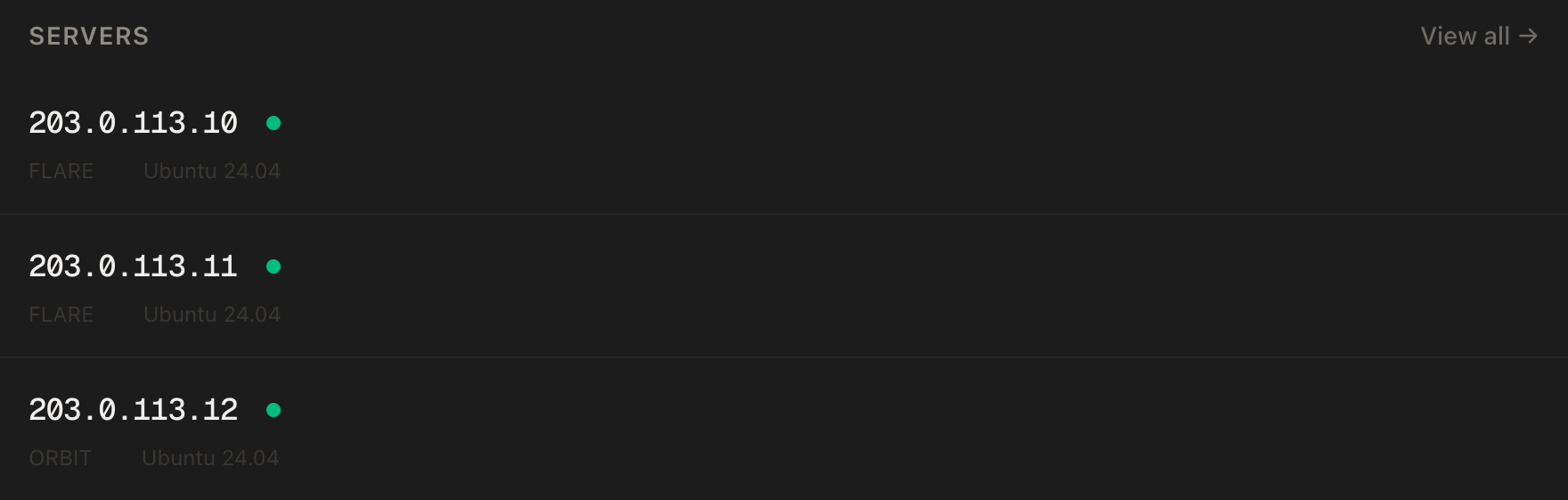
In the PrivateByte dashboard, open the store, choose Pulsar, pick Ubuntu 24.04, and deploy. Usually ready in a few minutes. Pick the region closest to your players.
Step 2: Connect and set the firewall
ssh root@YOUR_SERVER_IP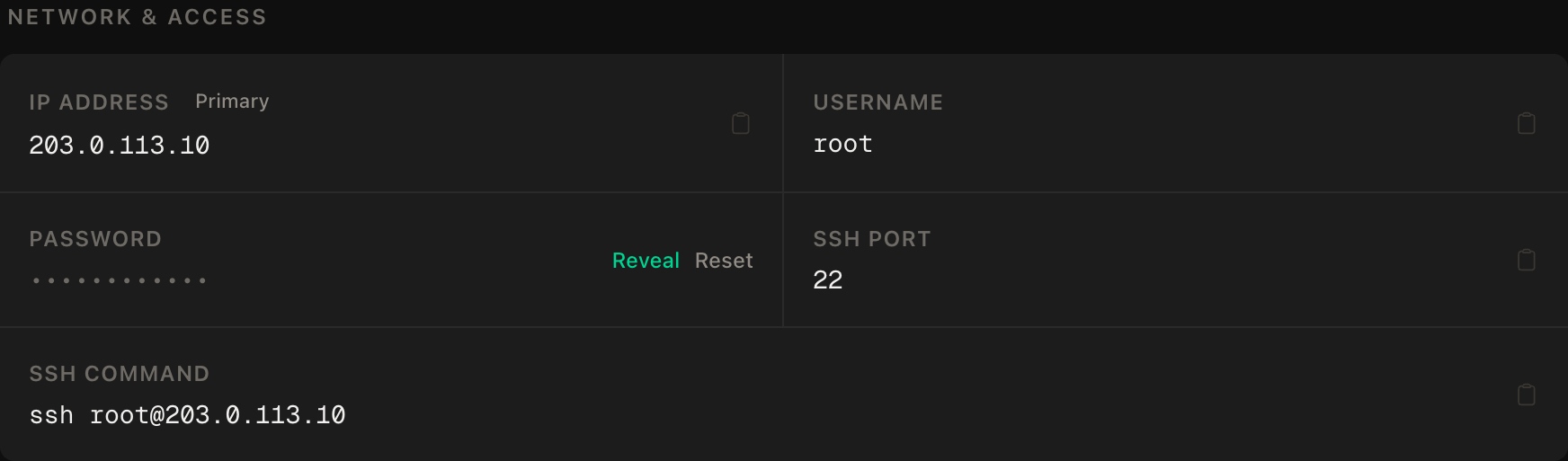
ssh command.Allow SSH first, then the game port, then enable the firewall:
apt update && apt upgrade -y
ufw allow OpenSSH
ufw allow 15637/udp
ufw --force enable
ufw status
Players connect straight to the game port, so it has to be public. The image's documentation lists 15637/UDP as the only port it needs, which is the Steam query port the game uses to find and join the server. Older guides also list 15636. If a friend cannot connect once everything else checks out, check the studio's current server page for the port list. Access is gated by the role passwords you set in Step 4, not by hiding the port.
Step 3: Install Docker
curl -fsSL https://get.docker.com | sh
systemctl enable --now docker
Step 4: Write the configuration
Create a folder for the server and a data directory owned by the user the container runs as. The image runs the game as a normal user, not root, using the PUID and PGID values you give it. A directory with the wrong owner is the most common reason the first start fails.
mkdir -p ~/enshrouded/data && cd ~/enshrouded
chown -R 1000:1000 data
nano docker-compose.yml
services:
enshrouded:
image: mornedhels/enshrouded-server:latest
container_name: enshrouded
hostname: enshrouded
restart: unless-stopped
stop_grace_period: 90s
ports:
- "15637:15637/udp"
volumes:
- ./data:/opt/enshrouded
environment:
PUID: 1000
PGID: 1000
SERVER_NAME: "My Enshrouded Server"
SERVER_SLOT_COUNT: 16
SERVER_ROLE_0_NAME: "Admin"
SERVER_ROLE_0_PASSWORD: "CHANGE_ME_admin_password"
SERVER_ROLE_0_CAN_KICK_BAN: "true"
SERVER_ROLE_0_CAN_ACCESS_INVENTORIES: "true"
SERVER_ROLE_0_CAN_EDIT_BASE: "true"
SERVER_ROLE_0_CAN_EXTEND_BASE: "true"
SERVER_ROLE_1_NAME: "Friend"
SERVER_ROLE_1_PASSWORD: "CHANGE_ME_friend_password"
SERVER_ROLE_1_CAN_EDIT_BASE: "true"
SERVER_ROLE_1_CAN_EXTEND_BASE: "true"
UPDATE_CRON: "*/30 * * * *"
UPDATE_CHECK_PLAYERS: "true"
BACKUP_CRON: "0 4 * * *"
BACKUP_MAX_COUNT: 14Here is what the settings do.
- Roles replace a single password. Enshrouded no longer uses one server password. The image says outright that
SERVER_PASSWORDis deprecated and ignored, so don't set it. Instead the server has roles, each with its own password and permissions, and the password a player types decides which role they get. The example makes an Admin role that can kick, ban and open inventories, and a Friend role that can build. Use two different passwords, and never reuse one from anywhere else. SERVER_SLOT_COUNTis the player cap, from 1 to 16. Sixteen is the maximum the game allows. Fewer slots mean less memory pressure.SERVER_variables become the settings file. The image says every variable starting withSERVERmaps to an option in the game'senshrouded_server.json. You can also edit that file directly.stop_grace_period: 90sgives the server time to shut down before Docker kills it. We can't point to documentation saying a stop triggers a final save, so treat it as a courtesy, not a promise. The backups below are your real protection.UPDATE_CRONchecks for new game versions every half hour, andUPDATE_CHECK_PLAYERSholds off while someone is playing.BACKUP_CRONhas the image make a compressed save backup at 04:00 each night, keeping the latest fourteen.
We left out one option on purpose: the image can map a /dev/ntsync device for performance, but only on kernel 6.14 or newer. Check uname -r first. It is optional.
Step 5: Start it
docker compose up -d
docker compose logs -f
The first start downloads the server, a few GB, and then sets up the compatibility layer, so give it several minutes. Watch the log until the server reports it is online, then press Ctrl+C.
In Enshrouded, open Join Game, find your server by name (or add the address YOUR_SERVER_IP), and enter the Friend password. Use the Admin password yourself when you need to manage things.
Step 6: Saves, backups and updates
World data lives in the container's game folder, which you mapped to ~/enshrouded/data. The image's default save location is a savegame folder, and logs and backups get their own folders beside it. Run ls ~/enshrouded/data to see exactly where they landed on your machine instead of trusting our guess.
The nightly backup protects you from a bad save or a failed update, but not from a dead disk, because it sits on the same server. Every so often, copy the archives to your own computer:
scp -r root@YOUR_SERVER_IP:~/enshrouded/data/backups ./enshrouded-backupsIf that path is empty, find the real one with the ls above and adjust.
To restore, stop the container, extract a backup archive into the save folder, check the file ownership matches your PUID and PGID, and start again. A wrong owner is a classic reason a restored world refuses to load. Practise once on a quiet evening.
Updates run on the schedule you set. To force one, run docker compose pull && docker compose up -d. Back up first, because patches are when a compatibility layer is most likely to surprise you.
Verify it works
It's running. docker compose ps shows the container as running, and the log shows the server online.
It's listening. ss -ulpn | grep 15637 shows the port open on UDP.
You can join. Connect from the game with the Friend password. Build something small.
It saves. Run docker compose restart enshrouded, rejoin, and check that your build is still there.
Backups exist. After the first 04:00, look in the data folder for a dated archive.
The negative control. The game port should only answer on UDP. From your own machine:
nc -zv -w 5 YOUR_SERVER_IP 15637This must fail. A plain TCP connection to 15637 should be refused or time out, because only the UDP rule exists. If it connects, something else opened the port, so check ufw status and the compose file. Confirm the positive side by actually joining from the game, since a UDP port can't be proven open with nc alone.
Troubleshooting
The first start never gets to "online". The image's documentation links two causes. A startup failure with an update error 0x202 points to file permissions or a full disk, so recheck the chown and run df -h. An update error 0x6 points to Steam connectivity or a corrupted manifest, and the image has a force-update command for that.
Nobody can connect. Check ufw status shows 15637/udp, and that the compose file publishes 15637:15637/udp. It is UDP, so a TCP rule does nothing. Then look at the studio's page for the current port list.
It broke after a game patch. This is the compatibility-layer risk in person. Check the image's issue tracker, try the other tag family (the wine tags if you are on the default Proton one, or the reverse), or restore last night's backup and wait a day.
Memory fills up. Run docker stats --no-stream after a long session. If you are on Comet and it is climbing, lower SERVER_SLOT_COUNT or move to Pulsar.
Lag spikes. Check the region first, then CPU with docker stats during play. The image recommends six cores, and that is what Pulsar has.
Do it with an AI agent
If you'd rather hand this to Claude Code, Cursor, or another coding agent, don't paste the article at it. Articles are written for humans, and agents skim warnings and lose ordering. Copy this instead, and run it from your own machine with your agent able to SSH out.
Prompt for an AI agent
Set up a dedicated Enshrouded server on a fresh Ubuntu 24.04 VPS using Docker
(mornedhels/enshrouded-server, which runs the Windows server under
Wine/Proton), with role passwords, nightly backups and a firewall.

FILL IN BEFORE YOU START:
- SERVER_IP = <VPS IP from the PrivateByte dashboard>
- The ADMIN and FRIEND role passwords are MINE and must differ. You never see
  them.

WHAT TO DO:
1. SSH to root@SERVER_IP. Confirm Ubuntu 24.04. Run "free -m" and tell me the
   RAM. Tell me the image's README asks for 16 GB, 6 cores and 30 GB disk, and
   that under 16 GB is an experiment. If it is under 8 GB, STOP and ask me.
2. apt update && apt upgrade -y.
3. Firewall, in THIS EXACT ORDER:
       a) ufw allow OpenSSH
       b) ufw allow 15637/udp
       c) ufw --force enable
4. Install Docker from https://get.docker.com and enable it.
5. mkdir -p ~/enshrouded/data and chown -R 1000:1000 ~/enshrouded/data.
6. Create ~/enshrouded/docker-compose.yml: image
   mornedhels/enshrouded-server:latest, restart unless-stopped,
   stop_grace_period 90s, ports "15637:15637/udp" only, volume
   ./data:/opt/enshrouded, env PUID/PGID 1000, SERVER_NAME,
   SERVER_SLOT_COUNT 16, SERVER_ROLE_0 as Admin and SERVER_ROLE_1 as Friend
   with their permission flags, UPDATE_CRON "*/30 * * * *",
   UPDATE_CHECK_PLAYERS true, BACKUP_CRON "0 4 * * *", BACKUP_MAX_COUNT 14.
   Set both role passwords to the literal placeholder "CHANGE_ME". Do NOT set
   SERVER_PASSWORD; it is deprecated and ignored.
7. STOP and tell me to edit the two role passwords myself. WAIT for my
   confirmation. Then docker compose up -d.

RULES:
- Never print, echo or log either password. Never cat the compose file after I
  edit it.
- The ufw ordering in step 3 is not optional; enabling first locks me out.
- UDP only for 15637. Open no other port.
- Do not map /dev/ntsync unless I ask and uname -r shows 6.14 or newer.
- Nothing destructive. If ~/enshrouded exists or an enshrouded container is
  running, STOP and ask: that folder is the world save.
- Do not fix a failing start by changing the RAM, the image tag or the volume
  permissions without telling me first.

VERIFY, AND SHOW ME THE OUTPUT OF EACH:
- "docker compose ps" -> running
- "docker compose logs --tail 40" -> server online (wait for the first
  download to finish)
- "ss -ulpn | grep 15637" -> listening on UDP
- "ufw status" -> only OpenSSH and 15637/udp
- NEGATIVE CONTROL, from MY machine: "nc -zv -w 5 SERVER_IP 15637" (TCP) ->
  MUST fail. If it connects, stop and tell me.
- "ls ~/enshrouded/data" -> report where savegame and backups are
- I join from the game and confirm.

Do not tell me a step succeeded without showing the command output that proves
it. If a verification fails, stop and report the actual error. Do not retry
silently and do not improvise a workaround.
Two guardrails are worth stealing. The RAM check runs before anything is installed, so an undersized box is a decision and not a later crash. And the role passwords are placeholders the agent can't fill in, so the secrets that gate your world never pass through it.
If your group plays more than one game, hosting a Valheim server uses the same Docker pattern, the Palworld guide covers another memory-hungry one, Satisfactory suits a builder crowd, and the Minecraft guide is the evergreen.
Deploy your VPS
An Enshrouded world that stays up while you sleep, with a backup from 04:00 behind it, is what a dedicated server buys your group.
The Pulsar plan matches the six cores and 16 GB the image maintainers ask for.
- Unmetered bandwidth, no overage
- Free DDoS protection
- Daily automated backups
- Browser console access
Common questions
Does Enshrouded have a Linux dedicated server? Not an official one. The developer's help centre says only Windows is supported for now, with Linux planned later. This guide runs the Windows server through Wine or Proton in a community Docker image, which works for many groups but isn't supported by the studio.
How much RAM does an Enshrouded server need? We couldn't read a figure from the studio. The Docker image's README asks for at least 16 GB, 6 cores and 30 GB of disk, so we recommend Pulsar. A small group may get by on 8 GB, but that is our reasoning, not a documented minimum.
Which port do I open? The image documents 15637 on UDP only. Older guides also mention 15636, so if players can't join, check the studio's current server page for the port list.
How many players can join?
Up to 16, set with SERVER_SLOT_COUNT. More players use more memory, so lower the number if your box is tight.
Is there a single server password? Not any more. The image says the old setting is ignored. You create roles with their own passwords and permissions, and the password a player enters decides their role.