A dedicated Satisfactory server keeps your factory running while you're offline and lets friends join without the host being online. This guide sets one up on a VPS with SteamCMD and systemd in about 30 minutes, starting with the sizing that decides whether a big factory stays smooth.
Using an AI coding agent? There's a ready-made prompt at the end of this guide. Copy that instead of this article.
Two things that differ from most game servers
You set it up from inside the game. There's no config file to edit for first-time setup. You start the server, then "claim" it from the game's Server Manager, where you set the server name and an administrator password. Until someone claims it, anyone who finds it could, so do this straight after the first start.
Two ports, and one is TCP. The server uses 7777 on TCP and UDP and 8888 on TCP. Miss any of the three rules and the server looks reachable but can't be joined.
Sizing, honestly
The wiki's stated requirement is 8 GB of RAM, and it says 16 GB "may be recommended for larger saves or to host more than 4 players." We can't give a figure for how much memory a factory uses over time. The documented direction is that bigger saves want more RAM.
So:
- Comet (8 GB) is the floor. Fine for a small group and a young factory.
- Pulsar (16 GB) is the recommendation for a late-game factory or more than four players.
- Orbit (4 GB) and below are not enough. Don't try.
Satisfactory's server also cares about fast single cores more than core count, so don't buy a bigger plan for vCPUs alone. Buy RAM headroom, and check htop during play.
What you'll need
- A PrivateByte VPS. We recommend Comet to start ($15.99/mo: 4 vCPU, 8 GB RAM, 100 GB SSD), or Pulsar ($27.99/mo: 6 vCPU, 16 GB RAM, 200 GB SSD) for a large factory.
- Satisfactory on Steam or Epic for you and your friends. Both clients can join a server, wherever the server files came from.
- About 30 minutes.
Step 1: Deploy your VPS
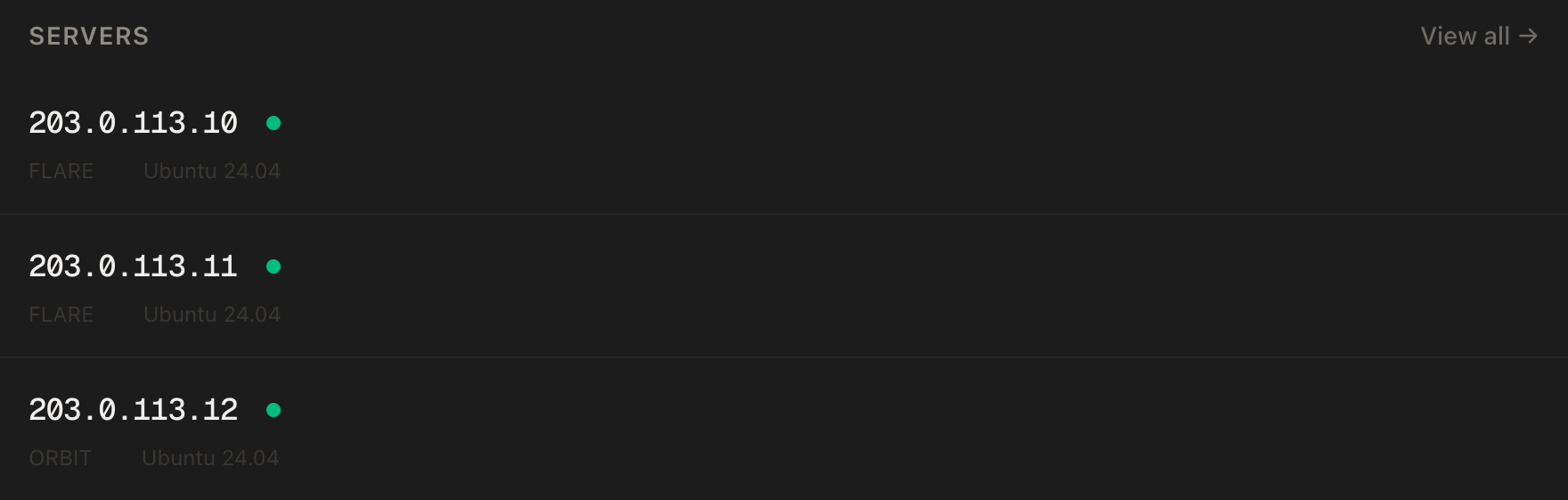
In the PrivateByte dashboard, open the store, choose Comet (or Pulsar), pick Ubuntu 24.04, and deploy. Ready in a few minutes. Pick the region closest to your players.
Step 2: Connect and set the firewall
ssh root@YOUR_SERVER_IP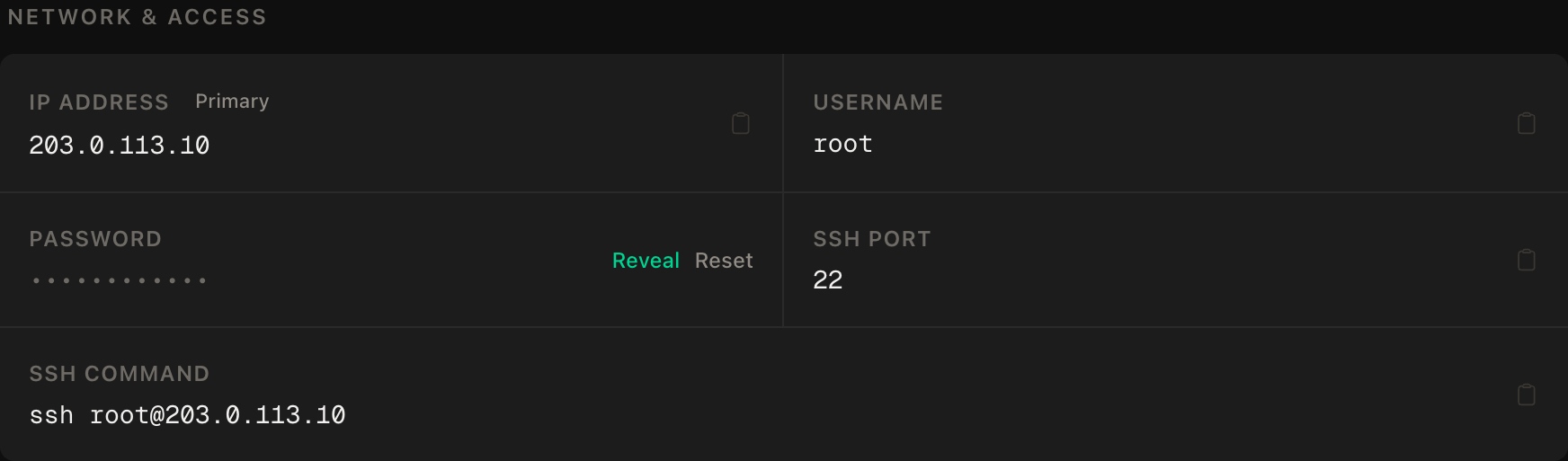
ssh command.SSH first, then the game ports, then enable:
apt update && apt upgrade -y
ufw allow OpenSSH
ufw allow 7777/tcp
ufw allow 7777/udp
ufw allow 8888/tcp
ufw --force enable
ufw status
These ports must be public because players connect straight to them. The admin password from Step 5 gates control.
Step 3: Install SteamCMD and create a service user
Run the server as a normal user, not root, as the wiki recommends.
add-apt-repository -y multiverse
dpkg --add-architecture i386
apt update
apt install -y steamcmd
useradd -m -s /bin/bash satisfactory
apt will ask you to accept the Steam license. Read it and accept it yourself.
Now install the server as that user. App ID 1690800 is the dedicated server, and it needs no Steam login:
sudo -u satisfactory /usr/games/steamcmd \
  +force_install_dir /home/satisfactory/SatisfactoryDedicatedServer \
  +login anonymous \
  +app_update 1690800 validate \
  +quit
The download is several GB.
Stable or experimental? The command above installs the stable branch. For the experimental branch, add -beta experimental after 1690800. Choose the branch your game client is on. A mismatch is the classic "can't connect after an update" cause.
Step 4: Run it once, then hand it to systemd
sudo -u satisfactory /home/satisfactory/SatisfactoryDedicatedServer/FactoryServer.shWatch the log until it settles, then press Ctrl+C. This first run creates the folders the server needs. Then write the service:
nano /etc/systemd/system/satisfactory.service[Unit]
Description=Satisfactory dedicated server
After=network-online.target
Wants=network-online.target
[Service]
User=satisfactory
Group=satisfactory
WorkingDirectory=/home/satisfactory/SatisfactoryDedicatedServer
ExecStart=/home/satisfactory/SatisfactoryDedicatedServer/FactoryServer.sh
Restart=on-failure
RestartSec=10
TimeoutStopSec=90
LimitNOFILE=100000
[Install]
WantedBy=multi-user.targetsystemctl daemon-reload
systemctl enable --now satisfactory
systemctl status satisfactory --no-pagerenable starts it on boot, and Restart=on-failure brings it back after a crash. For different ports, FactoryServer.sh takes -Port= and -ReliablePort=; change the firewall to match.
A caution on stopping. We haven't found documentation saying the server saves when systemd stops it. Before any planned stop or reboot, save from Server Manager first.
Step 5: Claim the server in-game
- Launch Satisfactory and open Server Manager from the main menu.
- Choose Add Server, enter
YOUR_SERVER_IP:7777, and confirm. - When it offers to claim the server, set a server name and an administrator password. Use a password you don't use anywhere else.
- Create a new game (or upload an existing save) from Server Manager, and start it.
Players join the same way: Server Manager, Add Server, the IP. Set a player password in the same settings if you don't want strangers joining.
Locked yourself out? Stop the service and delete the ServerSettings.7777.sav file (the number matches your port). The next start lets you claim the server again.
Step 6: Saves, autosave and backups
Saves live in the service user's home directory:
/home/satisfactory/.config/Epic/FactoryGame/Saved/SaveGames/serverSet the autosave interval in Server Manager's server settings. Shorter means less lost work after a crash, at the cost of a brief hitch each time. The settings also include Auto Pause, which pauses the game when nobody is connected.
Autosave doesn't protect you from a dead disk or a bad save. Add a nightly copy:
crontab -u satisfactory -e30 4 * * * mkdir -p /home/satisfactory/backups && tar -czf /home/satisfactory/backups/saves-$(date +\%F).tar.gz -C /home/satisfactory/.config/Epic/FactoryGame/Saved/SaveGames server && find /home/satisfactory/backups -name 'saves-*.tar.gz' -mtime +14 -deleteThat keeps two weeks of archives. Copy them off the server now and then, because a backup on the same disk shares its fate.
Step 7: Updating
Game updates need a matching server update. Stop the server first, then rerun the install command:
systemctl stop satisfactory
sudo -u satisfactory /usr/games/steamcmd \
  +force_install_dir /home/satisfactory/SatisfactoryDedicatedServer \
  +login anonymous \
  +app_update 1690800 validate \
  +quit
systemctl start satisfactory
Back up first, and add -beta experimental if that's your branch.
Verify it works
It's running. systemctl status satisfactory shows active (running).
It's listening. ss -tulpn | grep -E ':(7777|8888)' shows 7777 on TCP and UDP and 8888 on TCP.
You can join. Add the server in Server Manager and connect.
It saves. Save from Server Manager, run systemctl restart satisfactory, rejoin, and check that your build survived.
The negative control. From your own machine, check a port that should be closed:
nc -zv -w 5 YOUR_SERVER_IP 22222This must fail. If it connects, something unintended is open; check ufw status. Then nc -zv -w 5 YOUR_SERVER_IP 8888 must succeed.
Troubleshooting
You can add the server but can't join. Usually the firewall. ufw status should list 7777/tcp, 7777/udp and 8888/tcp.
"Server not found" after a game update. Your client and server are on different versions or branches. Update the server (Step 7), or switch it to match.
Lag or rubber-banding. Check htop while playing. If one core is pinned, that's the simulation. The wiki says raising NetServerMaxTickRate (default 30) won't fix lag. If memory is nearly full, move to a bigger plan.
The server crashes as the factory grows. Look for out-of-memory kills with journalctl -u satisfactory -n 100 and dmesg | grep -i kill. If you find one, move from Comet to Pulsar.
More than four players. The default is four, and the server is tuned for that. You can raise it in Game.ini with MaxPlayers= under [/Script/Engine.GameSession], but the wiki warns it may hurt stability. Stop the server first, because config edits can be overwritten when it shuts down gracefully.
Do it with an AI agent
If you'd rather hand this to Claude Code, Cursor, or another coding agent, don't paste the article at it. Agents skim warnings and lose ordering. Copy this instead, and run it from your own machine with your agent able to SSH out.
Prompt for an AI agent
Set up a dedicated Satisfactory server on a fresh Ubuntu 24.04 VPS with
SteamCMD (app 1690800) as an unprivileged user under systemd, with a firewall
and nightly save backups.

FILL IN BEFORE YOU START:
- SERVER_IP = <VPS IP from the PrivateByte dashboard>
- BRANCH = <stable or experimental; must match my game client>
- I claim the server myself from the in-game Server Manager and set the admin
  password there. You never see it and never set one.

WHAT TO DO:
1. SSH to root@SERVER_IP. Confirm Ubuntu 24.04. Run "free -m" and tell me the
   RAM. If it is under 8 GB, STOP and tell me: the documented requirement is
   8 GB and 16 GB is recommended for larger saves or more than 4 players.
2. apt update && apt upgrade -y.
3. Firewall, in THIS EXACT ORDER:
       a) ufw allow OpenSSH
       b) ufw allow 7777/tcp
       c) ufw allow 7777/udp
       d) ufw allow 8888/tcp
       e) ufw --force enable
4. Enable multiverse and i386, then install steamcmd. The Steam license prompt
   is mine to accept: STOP and let me accept it.
5. Create user "satisfactory" (useradd -m -s /bin/bash). If it exists, STOP and ask.
6. As that user, install to /home/satisfactory/SatisfactoryDedicatedServer with
   +login anonymous +app_update 1690800 validate +quit. If BRANCH is
   experimental, add -beta experimental.
7. Write /etc/systemd/system/satisfactory.service: User=satisfactory,
   WorkingDirectory the install dir, ExecStart
   /home/satisfactory/SatisfactoryDedicatedServer/FactoryServer.sh,
   Restart=on-failure, RestartSec=10, TimeoutStopSec=90, LimitNOFILE=100000.
   daemon-reload, then enable --now.
8. Add a crontab for user satisfactory at 04:30 daily that tars
   /home/satisfactory/.config/Epic/FactoryGame/Saved/SaveGames/server into
   /home/satisfactory/backups/saves-DATE.tar.gz and deletes archives older than
   14 days (escape % as \% in crontab).
9. Tell me to claim the server in Server Manager (SERVER_IP:7777). WAIT.

RULES:
- Never print, echo or log any password or token.
- The ufw ordering in step 3 is not optional; enabling first locks me out.
- Both TCP and UDP for 7777, and TCP only for 8888. Open nothing else.
- Do not run the game server as root.
- Nothing destructive. If the install directory or the saves folder already
  exists, STOP and ask: that folder is the world.
- Never delete ServerSettings*.sav.
- Do not stop the server for updates or config edits without telling me to save
  in Server Manager first.

VERIFY, AND SHOW ME THE OUTPUT OF EACH:
- "systemctl status satisfactory --no-pager" -> active (running)
- "ss -tulpn | grep -E ':(7777|8888)'" -> 7777 tcp+udp, 8888 tcp
- "ufw status" -> only OpenSSH, 7777/tcp, 7777/udp, 8888/tcp
- NEGATIVE CONTROL, from MY machine: "nc -zv -w 5 SERVER_IP 22222" -> MUST fail.
  POSITIVE CONTROL: "nc -zv -w 5 SERVER_IP 8888" -> MUST succeed.
- "crontab -u satisfactory -l" -> the backup line
- I join from the game and confirm.

Do not tell me a step succeeded without showing the command output that proves
it. If a verification fails, stop and report the actual error. Do not retry
silently and do not improvise a workaround.
Two guardrails are worth stealing. The RAM check runs before anything is installed, so an undersized box is a decision, not a later crash. And the agent can't set the admin password, because it's created in the game client and never touches shell history.
If your group plays more than one game, hosting a Valheim server uses a similar pattern, the Palworld guide covers another memory-hungry one, Project Zomboid and Terraria suit smaller plans, and the Minecraft guide is the evergreen.
Deploy your VPS
The Comet plan meets the documented 8 GB requirement, and Pulsar gives a big factory room to grow.
- Unmetered bandwidth, no overage
- Free DDoS protection
- Daily automated backups
- Browser console access
Common questions
How much RAM does a Satisfactory server need? The wiki states 8 GB, and says 16 GB may be recommended for larger saves or more than four players. Start on Comet, and move to Pulsar if the factory grows or memory fills up.
Which ports does it use? 7777 on TCP and UDP, and 8888 on TCP. Missing one of the three rules is the most common cause of "can't join."
Can Steam and Epic players play together? Yes. The wiki says both clients can connect regardless of where the server files were downloaded.