A dedicated Palworld server keeps your world running when the host player logs off, lets friends join on their own schedule, and doesn't tank anyone's framerate by hosting from their gaming PC. This guide sets one up on a VPS with Docker in about 20 minutes — and starts with the number every other guide gets wrong.
Using an AI coding agent? There's a ready-made prompt at the end of this guide. Copy that instead of this article.
The honest bit first: Palworld wants RAM
Palworld's server is unusually memory-hungry, and its usage grows the longer the world runs. The official requirements are blunt about it: 16 GB recommended, and 8 GB "is also bootable, but increases the possibility of server crashes due to out of memory."
So this guide recommends Pulsar (16 GB). That's more than our other game guides, and it's the correct number. If your group is small and you're happy with a scheduled daily restart, Comet (8 GB) runs it — the restart in Step 6 is what makes that workable, and you should expect the occasional crash on a busy night. Anything smaller won't hold it.
What you'll need
- A PrivateByte VPS. We recommend Pulsar ($27.99/mo: 6 vCPU, 16 GB RAM, 200 GB SSD).
- The game on Steam for you and your friends.
- About 20 minutes. Every command is copy-paste.
Step 1: Deploy your VPS
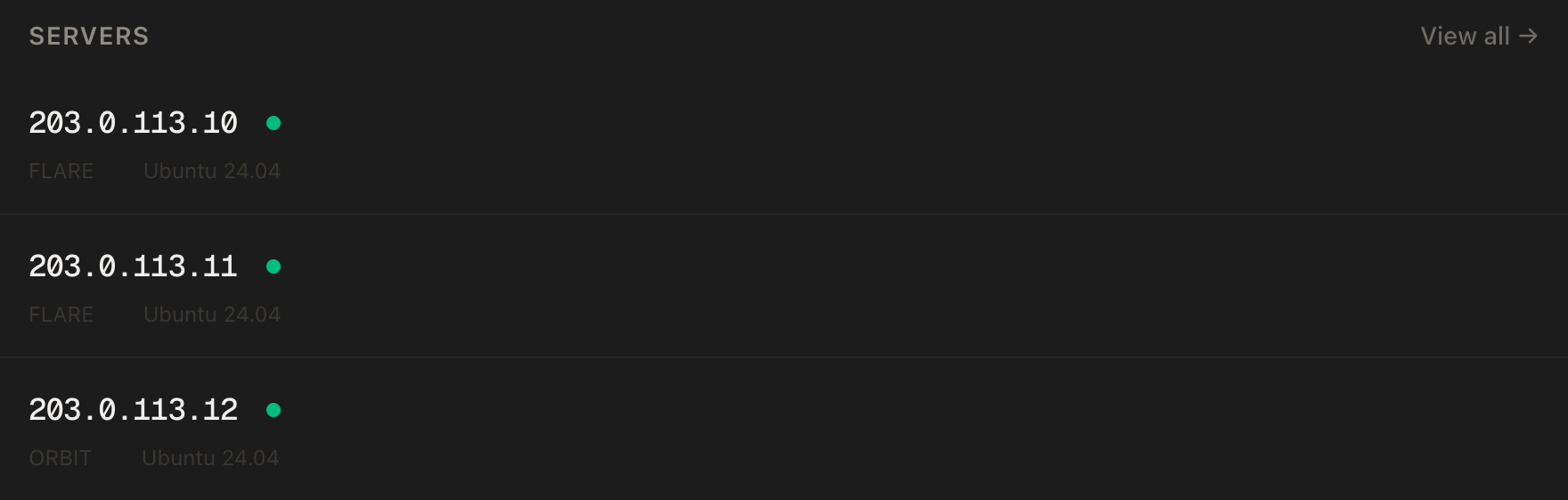
In the PrivateByte dashboard, open the store, choose Pulsar, pick Ubuntu 24.04, and deploy. Ready in a few minutes. Pick the region closest to most of your players — game servers feel every millisecond.
Step 2: Connect and set the firewall
ssh root@YOUR_SERVER_IP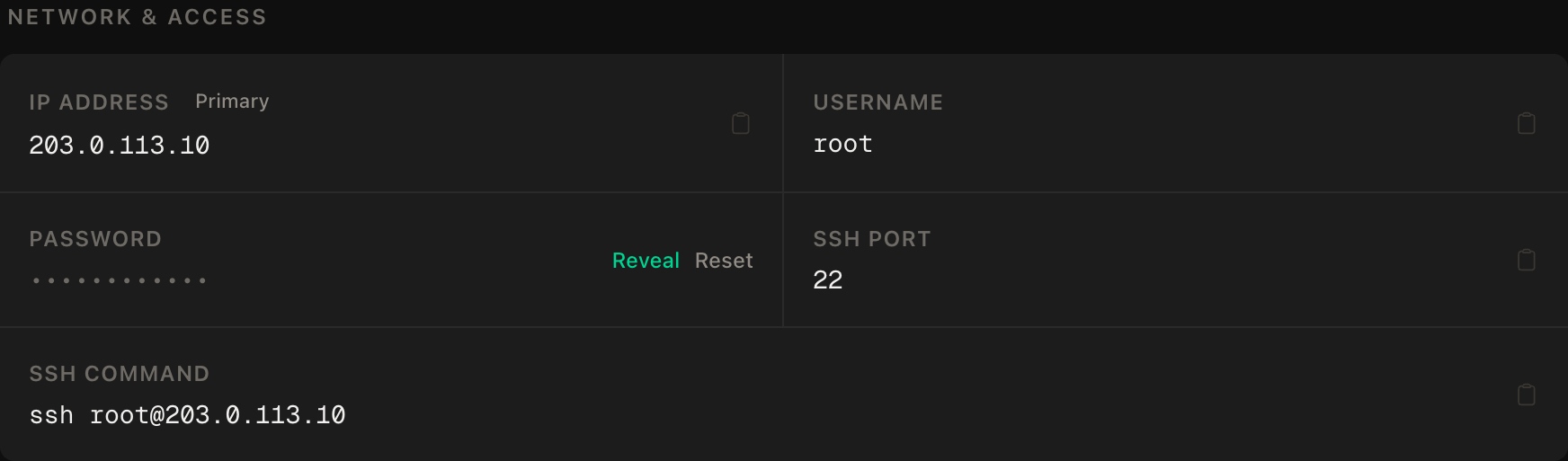
ssh command.SSH first, then the two game ports, then enable:
apt update && apt upgrade -y
ufw allow OpenSSH
ufw allow 8211/udp
ufw allow 27015/udp
ufw --force enable
ufw status
Unlike our web guides, these ports must be public — players connect straight to them. That's fine: access is gated by the server password, and there's no web interface to protect. RCON (25575) and the REST API (8212) stay closed; nothing in this setup needs them.
Step 3: Install Docker
curl -fsSL https://get.docker.com | sh
systemctl enable --now docker
Step 4: Write the configuration
mkdir -p ~/palworld && cd ~/palworld
nano docker-compose.yml
services:
palworld:
image: thijsvanloef/palworld-server-docker:latest
restart: unless-stopped
container_name: palworld-server
stop_grace_period: 30s
ports:
- "8211:8211/udp"
- "27015:27015/udp"
environment:
PUID: 1000
PGID: 1000
PORT: 8211
PLAYERS: 16
SERVER_NAME: "My Palworld Server"
SERVER_PASSWORD: "CHANGE_ME_join_password"
ADMIN_PASSWORD: "CHANGE_ME_different_admin_password"
COMMUNITY: false
BACKUP_ENABLED: true
BACKUP_CRON_EXPRESSION: "0 4 * * *"
RCON_ENABLED: false
volumes:
- ./palworld:/palworld/Three settings that matter:
- Two different passwords.
SERVER_PASSWORDis what friends type to join;ADMIN_PASSWORDis what kicks and bans. Don't make them the same, and don't reuse either from anywhere else. COMMUNITY: falsekeeps you off the public server browser. Friends join by IP, and strangers don't find you.BACKUP_ENABLEDhas the image back up the world every night at 04:00 into./palworld/backups. That's your undo for a corrupted save.
Step 5: Start it
docker compose up -d
docker compose logs -f
First start downloads the server (a few GB) — give it several minutes. Once the log shows the server listening, press Ctrl+C to stop watching (the server keeps running).
In Palworld: Join Multiplayer Game, enter YOUR_SERVER_IP:8211 at the bottom, connect, and type the server password.
Step 6: A daily restart — the memory fix
Because Palworld's memory use climbs over time, a scheduled restart is the standard fix. Schedule it for 05:00, an hour after the backup:
crontab -e0 5 * * * cd /root/palworld && /usr/bin/docker compose restart palworld >> /root/palworld/restart.log 2>&1stop_grace_period: 30s in the compose file gives the server time to save before Docker stops it. On Comet, this line is what turns "crashes on a busy night" into "restarts quietly at 5am".
Verify it works
You can join. Connect from the game with the IP, port and password. Build something small.
It saves. Restart the container (docker compose restart palworld), rejoin, and check the thing you built is still there.
Backups exist. After the first 04:00, ls ~/palworld/palworld/backups shows a dated archive. Don't wait for a disaster to check.
The negative control: the admin ports are closed. From your own machine:
nc -zv -w 5 YOUR_SERVER_IP 25575This must fail. A refused or timed-out connection means RCON isn't reachable from the internet. If it connects, something opened the port — check ufw status and the compose file.
Memory, honestly. Run docker stats --no-stream after a long session. Note the number; that's your real headroom, and it's how you'll know whether you're on the right plan.
Troubleshooting
Friends can't connect, you can't either. Check the port is 8211 in the address, and ufw status shows 8211/udp. Palworld is UDP — a TCP rule won't help.
Server crashes after a few hours. Out of memory. docker stats will show it climbing. Keep the daily restart, reduce PLAYERS, or move to Pulsar — this is the sizing section arriving in person.
Joined but the world is empty/new. You're looking at a different save folder. Everything persistent lives in ~/palworld/palworld; if you moved the compose file, move that directory with it.
Update broke the server. The image pulls the latest server on start. docker compose pull && docker compose up -d after an official patch; if it misbehaves, restore last night's backup.
Lag spikes. Region first (ping from your players' location), then CPU: docker stats during play. Palworld uses multiple cores — Pulsar's 6 vCPUs help here too.
Do it with an AI agent
If you'd rather hand this to Claude Code, Cursor, or another coding agent, don't paste the article at it. Articles are written for humans, and agents skim the warnings and lose the ordering. Copy this instead, and run it from your own machine with your agent able to SSH out.
Prompt for an AI agent
Set up a dedicated Palworld server on a fresh Ubuntu 24.04 VPS using Docker
(thijsvanloef/palworld-server-docker), private (not in the community browser),
with nightly backups and a daily restart.

FILL IN BEFORE YOU START:
- SERVER_IP = <VPS IP from the PrivateByte dashboard>
- The SERVER_PASSWORD and ADMIN_PASSWORD are MINE. You never see them.

WHAT TO DO:
1. SSH to root@SERVER_IP. Confirm Ubuntu 24.04. Run "free -m" and tell me the
   RAM. If it is under 16 GB, warn me that the official requirements call 8 GB
   crash-prone, and that the daily restart in step 7 is mandatory.
2. apt update && apt upgrade -y.
3. Firewall, in THIS EXACT ORDER:
       a) ufw allow OpenSSH
       b) ufw allow 8211/udp
       c) ufw allow 27015/udp
       d) ufw --force enable
   Do NOT open 25575 (RCON) or 8212 (REST API).
4. Install Docker from https://get.docker.com and enable it.
5. Create ~/palworld/docker-compose.yml: image
   thijsvanloef/palworld-server-docker:latest, restart unless-stopped,
   stop_grace_period 30s, ports "8211:8211/udp" and "27015:27015/udp" only,
   env PUID/PGID 1000, PORT 8211, PLAYERS 16, COMMUNITY false,
   BACKUP_ENABLED true, BACKUP_CRON_EXPRESSION "0 4 * * *", RCON_ENABLED false,
   and SERVER_PASSWORD / ADMIN_PASSWORD set to the literal placeholder
   "CHANGE_ME". Volume ./palworld:/palworld/.
6. STOP and tell me to edit the two passwords myself (they must differ).
   WAIT for my confirmation. Then docker compose up -d.
7. Add a root crontab line:
   0 5 * * * cd /root/palworld && /usr/bin/docker compose restart palworld >> /root/palworld/restart.log 2>&1

RULES:
- Never print, echo or log either password. Never cat the compose file after I
  edit it.
- The ufw ordering in step 3 is not optional; enabling first locks me out.
- Do not enable RCON or the REST API, and do not publish any TCP port.
- Nothing destructive. If ~/palworld exists or a palworld container is
  running, STOP and ask — that directory is the world save.

VERIFY, AND SHOW ME THE OUTPUT OF EACH:
- "docker compose ps" -> running
- "docker compose logs --tail 30" -> server listening (after the first
  download completes; wait for it)
- "ufw status" -> only OpenSSH, 8211/udp, 27015/udp
- THE NEGATIVE CONTROL, from MY machine: "nc -zv -w 5 SERVER_IP 25575"
  -> MUST fail. If it connects, stop and tell me.
- "crontab -l" -> the restart line
- I join from the game at SERVER_IP:8211 and confirm.

Do not tell me a step succeeded without showing the command output that proves
it. If a verification fails, stop and report the actual error. Do not retry
silently and do not improvise a workaround — in particular never lower the RAM
settings or disable backups to make it start.
Two things in that prompt are worth stealing for your own agent work. It makes the agent report the RAM against the official requirement before it builds anything, so an undersized box is a decision you make, not a crash you discover. And the passwords are placeholders the agent can't fill in — the one secret it would otherwise write into a file in plain text never passes through it.
If your group plays more than one game, hosting a Valheim server uses the same Docker pattern, and the Minecraft guide covers the other evergreen.
Deploy your VPS
A Palworld world that's always on, never lags because someone's streaming, and survives a bad night with a backup from 04:00 — that's what a dedicated server buys your group.
The Pulsar plan is the size the official requirements ask for.
- Unmetered bandwidth, no overage
- Free DDoS protection
- Daily automated backups
- Browser console access
Common questions
Can I run Palworld on 8 GB? It boots, and the official requirements say so — while warning that 8 GB raises the risk of out-of-memory crashes. With a small group and the daily restart from Step 6 it's workable on Comet; for a busy server or long sessions, 16 GB is the honest answer.
How many players can it handle?
The compose file sets 16. Memory, not the setting, is the practical ceiling: more players and more built bases mean more RAM. Watch docker stats after a busy evening and adjust.
Is it safe to have the game port open to the internet?
Yes — that's how every game server works. The server password gates who plays, COMMUNITY: false keeps you off the browser, and the admin interfaces (RCON, REST) aren't published at all.
How do I restore a backup?
Stop the container, replace the save in ~/palworld/palworld with the contents of a dated archive from backups, and start it again. Test this once on a quiet evening so the real time isn't the first time.
Will updates happen automatically?
The image fetches the current server when it starts, so the daily restart usually picks up patches. After a big game update, docker compose pull gets the newest image too.