Renting a Valheim server means someone else's control panel and someone else's limits. Hosting it yourself on a VPS costs less, keeps the world save in your hands, and — because the server we use ships with automatic world backups — protects the thing that actually matters: a hundred hours of shared building. About 20 minutes from blank server to sailing with friends.
Using an AI coding agent? There's a ready-made prompt at the end of this guide. Copy that instead of this article.
What you'll need
- A PrivateByte VPS. Orbit ($7.99/mo: 2 vCPU, 4 GB RAM, 50 GB SSD) is the floor, and the sizing note below is not negotiable the way it sometimes is.
- Valheim on Steam for everyone joining — the server is free and doesn't need a Steam account.
- About 20 minutes. Every command is copy-paste.
Sizing, honestly. The dedicated server idles at roughly 2.8 GB of RAM before the first player connects — that's the image's own documentation, not our estimate. Our 2 GB Flare plan cannot hold the idle process; this isn't a "it'll be slow" situation, it's a "it will be killed by the kernel" one. Orbit at 4 GB runs a small group's world properly. Big groups, big bases and mod packs push toward Comet at 8 GB — Valheim's famous late-game megabases are exactly the thing that eats server memory.
And one structural difference from our web guides: there's nothing to hide behind a proxy here. Players connect directly to the game's UDP ports, so those ports must be public — that's normal and fine, because joining requires the server password, and there's no admin panel or web anything to protect. The firewall stays tiny; the password does the gating.
Step 1: Deploy your VPS
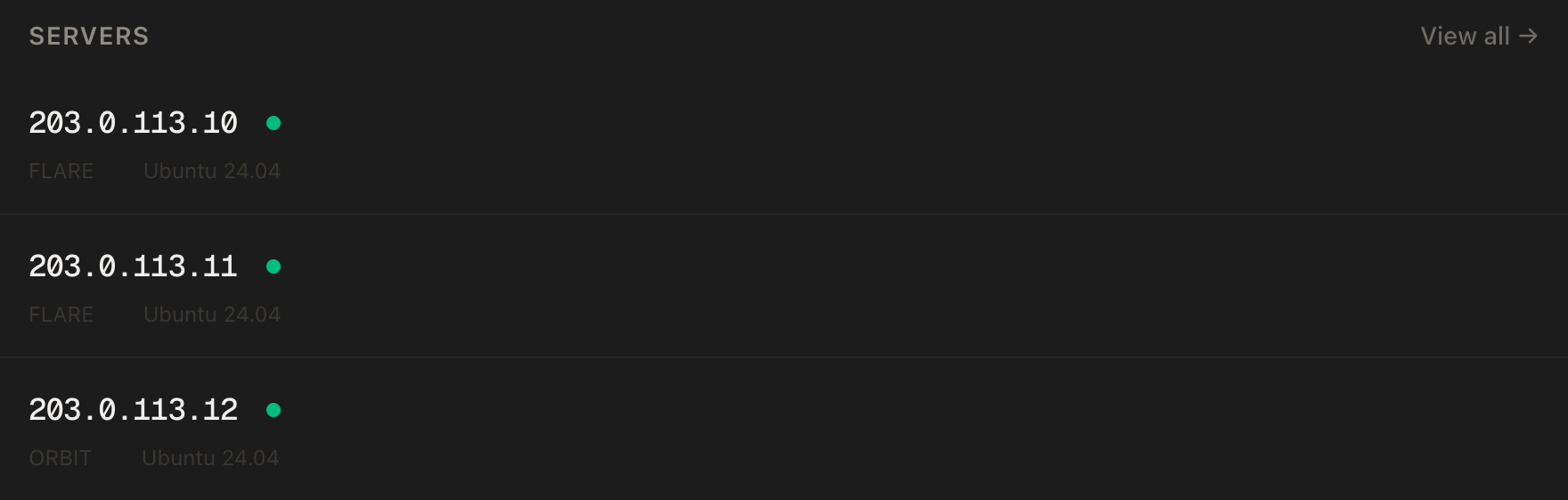
In the PrivateByte dashboard, open the store, choose Orbit, pick Ubuntu 24.04, and deploy. Ready in a few minutes.
Pick the region closest to most of your players — melee combat with 150ms of latency is a worse enemy than any troll.
Step 2: Connect over SSH
ssh root@YOUR_SERVER_IPWindows users: PowerShell has ssh built in, or use PuTTY. The dashboard also has a browser console if you'd rather install nothing.
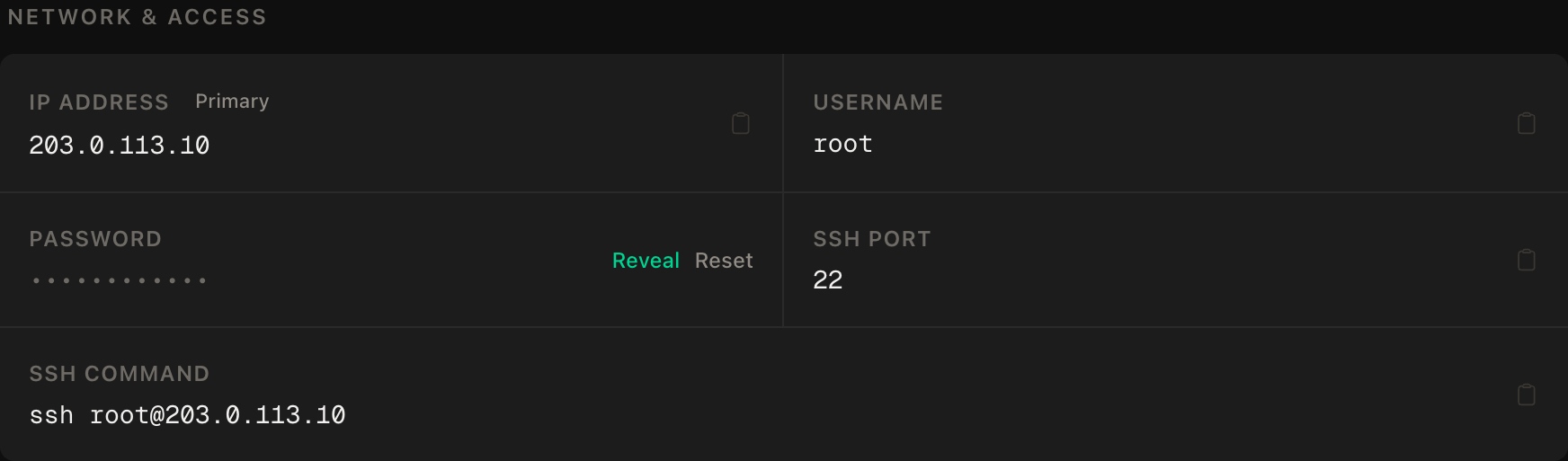
ssh command.Step 3: Install Docker
apt update && apt upgrade -y
curl -fsSL https://get.docker.com | sh
systemctl enable --now docker
docker --version
Step 4: Set up the firewall
SSH first, then the game's UDP ports, then enable:
ufw allow OpenSSH
ufw allow 2456:2457/udp
ufw --force enable
ufw status
That's the whole firewall. Note it's udp — Valheim's traffic is UDP, and a tcp rule here (a surprisingly common typo) produces a server nobody can join while every check on the server itself looks fine.
Step 5: Write the configuration
mkdir -p ~/valheim && cd ~/valheim
nano docker-compose.yml
services:
valheim:
image: ghcr.io/community-valheim-tools/valheim-server
restart: unless-stopped
stop_grace_period: 2m
ports:
- "2456-2457:2456-2457/udp"
environment:
SERVER_NAME: "Our Midgard"
WORLD_NAME: "Midgard"
SERVER_PASS: "CHANGE_ME_MIN_5_CHARS"
SERVER_PUBLIC: "false"
TZ: "Europe/London"
volumes:
- ./config:/config
- ./server:/opt/valheimThe lines that earn an explanation:
SERVER_PASSmust be at least 5 characters — the game enforces it. Make it a real one anyway: with the game ports public, this password is the entire guest list.SERVER_PUBLIC: "false"keeps you off the in-game community browser. The image's own docs admit that even listed servers are "challenging to actually find" in that browser — so skip it: your group joins by IP (Step 7), which is faster and advertises nothing.WORLD_NAMEis permanent in spirit — it names the save files. Changing it later doesn't rename your world; it starts a new one, and the old files sit there while everyone asks where the base went.stop_grace_period: 2mgives the server time to save the world on shutdown instead of being killed mid-write.- The two volumes split the precious from the replaceable:
./configholds worlds and settings;./servercaches the ~1 GB game server download so updates don't re-fetch everything.
Step 6: Start it — then wait properly
docker compose up -d
docker compose logs -f valheim
First start downloads the Valheim dedicated server from Steam — a gigabyte or so, several minutes. Watch the log until you see the line that matters:
Game server connectedThat's the server registered and joinable. Ctrl+C leaves the log; the server keeps running.
Step 7: Join
In Valheim: Start Game → your character → Join Game → Join IP, then:
YOUR_SERVER_IP:2456Enter the server password. First join takes a moment while the world streams in; after that it's in your recent servers list. Everyone in the group does the same — no Steam friends requirement, no community-list scrolling.
Verify it works
The join in Step 7 was the real test — DNS-free, proxy-free, it's just you, UDP and the password. Three checks remain, and the backup one is the reason to not skip this section.
The backups exist. The image backs up the world hourly, keeping three days, on its own. Trust it the way we trust anything — by looking:
ls -lh ~/valheim/config/backups/After the first hour there should be a timestamped archive in there. This directory is a hundred hours of your group's building; confirm it's being written before the hundred hours exist, not after a griefing incident. PrivateByte's daily server backups sit underneath as the second layer.
A graceful stop saves the world. Once, deliberately:
docker compose stop
docker compose up -d
Watch the logs on the way down — you'll see the world save before exit. That's stop_grace_period earning its place, and now you know a redeploy doesn't cost progress.
It survives a reboot. reboot, wait two or three minutes (the server takes longer to start than a web app), and join again without touching SSH.
Troubleshooting
Nobody can join, but the logs say "Game server connected". Almost always the firewall rule: ufw status must show 2456:2457/udp — udp, not tcp. Second suspect: joining with the wrong port (it's :2456) or a typo'd password.
The server never reaches "Game server connected". Still downloading — first run is slow — or RAM. free -m: if the box is swapping at idle, this is the sizing section arriving in person, and no configuration flag fixes 2 GB.
Lag spikes when someone visits the megabase. Instance count in one place is the classic Valheim server load. More RAM helps (Comet), a smaller build radius helps more, and this is a genuine game limitation every host meets eventually.
"Incompatible version" when joining. The game updated on Steam but the server hasn't restarted to pick it up: docker compose restart valheim — the image checks for updates on start. (Players update through Steam as normal.)
You changed WORLD_NAME and the base is gone. It's not gone — you're in a fresh world. Set WORLD_NAME back to the original value and restart; the old save files never left ./config.
You want mods. BepInEx-based modding is supported by this image via its env vars, and it's a rabbit hole of its own — get the vanilla server stable first, snapshot the VPS, then experiment knowing you can walk it back.
Do it with an AI agent
If you'd rather hand this to Claude Code, Cursor, or another coding agent, don't paste the article at it. Articles are written for humans, and agents skim the warnings and lose the ordering. Copy this instead, and run it from your own machine with your agent able to SSH out.
Prompt for an AI agent
Set up a dedicated Valheim server on a fresh Ubuntu 24.04 VPS using Docker and
the community valheim-server image, private (unlisted), password-gated, with
world backups verified.

FILL IN BEFORE YOU START:
- SERVER_IP   = <VPS IP from the PrivateByte dashboard>
- SERVER_NAME = <display name, e.g. "Our Midgard">
- WORLD_NAME  = <save name — treat as permanent; changing it later starts a
                 NEW world rather than renaming this one>
- TIMEZONE    = <IANA name, e.g. Europe/London>

WHAT TO DO:
1. SSH to root@SERVER_IP. Confirm Ubuntu 24.04, and run "free -m". The server
   idles at ~2.8 GB: if total RAM is under 4 GB, STOP and tell me — it will be
   OOM-killed, not slow.
2. apt update && apt upgrade -y. Install Docker from https://get.docker.com.
3. Firewall, in THIS EXACT ORDER:
       a) ufw allow OpenSSH
       b) ufw allow 2456:2457/udp    <- udp, not tcp — tcp is the classic
                                        silent mistake here
       c) ufw --force enable
   Open nothing else. There is no web interface on this box.
4. Create ~/valheim/docker-compose.yml: image
   ghcr.io/community-valheim-tools/valheim-server, restart unless-stopped,
   stop_grace_period 2m, ports "2456-2457:2456-2457/udp", volumes
   ./config:/config and ./server:/opt/valheim, environment SERVER_NAME,
   WORLD_NAME, TZ=TIMEZONE, SERVER_PUBLIC="false", and SERVER_PASS — ASK ME to
   type the password into the file myself (minimum 5 characters, enforced by
   the game). Never generate or print it.
5. docker compose up -d, then follow the logs. First start downloads ~1 GB
   from Steam — wait for the literal line "Game server connected" before
   calling the server up. Do not report success on the container merely
   running.
6. Give me the exact join string for the game: SERVER_IP:2456 via
   Join Game -> Join IP.

RULES:
- SERVER_PUBLIC stays "false" — the server must not appear in the community
  browser. Joining is by IP and password.
- Never print or log SERVER_PASS. To check it is set, check the variable in
  the file is non-empty and at least 5 characters.
- WORLD_NAME is written once. If a world already exists in ./config with a
  different name, STOP and ask — a name change silently abandons the existing
  world.
- Nothing destructive. If ~/valheim exists or a valheim container is running,
  STOP and ask — ./config is the world save itself.

VERIFY, AND SHOW ME THE OUTPUT OF EACH:
- "docker compose logs valheim | grep 'Game server connected'" -> the line
  exists
- "ufw status" -> OpenSSH and 2456:2457/udp only, and the game rule says udp
- I join from the game via SERVER_IP:2456 with the password. I will confirm —
  this is the only end-to-end proof, and no server-side check substitutes
  for it.
- "docker compose stop" then up again -> the shutdown log shows the world
  saving before exit, proving a redeploy costs no progress
- after the first hour: "ls -lh ~/valheim/config/backups/" -> at least one
  timestamped backup exists. Tell me to re-check this if the hour has not
  passed — do not skip it, this directory is the whole point of self-hosting.
- reboot, wait 3 minutes, I join again without any manual start.

Do not tell me a step succeeded without showing the command output that proves
it. If a verification fails, stop and report the actual error. Do not retry
silently and do not improvise a workaround, especially around the firewall or
anything in ./config.
Two things in that prompt are worth stealing for your own agent work. It defines "up" as a specific log line rather than a running container, because for game servers those states are twenty minutes apart and an agent will happily report the cheaper one. And it treats WORLD_NAME as a one-way door — the failure isn't an error message but a quietly parallel universe, which is exactly the kind of thing an agent "fixing" a config will trigger.
If your group also wants a blocky second home, the Minecraft server guide is this article's sibling with the same honesty about RAM — and a Discord bot on the same box makes a fine village noticeboard.
Deploy your VPS
A world your group owns outright — save files you can touch, backups you can see, and no monthly panel rental deciding your settings.
The Orbit plan is the honest floor for Valheim, with the headroom a growing base actually uses.
- Unmetered bandwidth, no overage
- Free DDoS protection
- Daily automated backups
- Browser console access
Common questions
How many players does this handle? Valheim's practical ceiling is ten, and an Orbit server handles a typical group of three to six comfortably. It's world complexity — the megabase, not the player count — that grows the memory bill over time.
Do we all need to be online at once? No — that's the point of a dedicated server. The world runs 24/7; whoever's free plays, and everyone else finds the base taller than they left it.
Can I move my existing local world onto the server?
Yes: copy the world's .db and .fwl files from your PC's Valheim save folder into ./config/worlds_local/ on the server, set WORLD_NAME to match the file names exactly, and restart. The reverse also works — your world is portable files, which is the whole self-hosting argument in one feature.
Is crossplay possible? The image supports enabling it, and console players can then join — but crossplay in Valheim has a history of being flakier than Steam-to-Steam. Get the Steam group stable first, then experiment behind a snapshot.
What happens to the world if I cancel the server?
Download ./config first — worlds are just files, and yours to take. That, plus the visible hourly backups, is the honest difference between hosting yourself and renting a panel.