You end up with Audiobookshelf in Docker behind Caddy with automatic HTTPS: your own audiobook and podcast server with a web player, progress synced across devices, and scheduled backups. The article recommends Flare ($5.99/mo: 1 vCPU, 2 GB RAM, 25 GB SSD) for a personal or family library, or Orbit for podcasts and bigger libraries. Setup takes about 30 minutes, plus upload time.
Disk decides the plan. A ten-hour book is about 290 MB at 64 kbps or 580 MB at 128 kbps. Our test Flare had about 21 GB free: roughly 70 books at 64 kbps.
Create the root user straight away. There is no default login, and until a root user exists anyone reaching the address could claim it.
Backups are off by default. Turn on the schedule, keep about seven copies, raise the 1 GB size cap, and pull backups off the server.
Backups don't include your audio. They cover the database and covers only, so keep your original files elsewhere.
The phone apps are in beta. Android is on Google Play. The iOS TestFlight beta is currently full, so iPhone users can install the web player as an app instead.
Self-hosting Audiobookshelf gives you your own audiobook and podcast server: a web player, progress that follows you between devices, and phone apps, running on a VPS you control. This guide sets it up behind automatic HTTPS in about 30 minutes, for audiobooks you own.
Using an AI coding agent? There's a ready-made prompt at the end of this guide. Copy that instead of this article.
Read this before you start
This is for audiobooks you own: DRM-free purchases, your own CD rips, public-domain recordings, and podcasts you follow. Audiobookshelf is a player and library manager, not a content source, and this guide does not cover removing DRM. The docs say account sharing is unsupported, so give each listener a login.
The server holds a copy. Built-in backups cover the database and cover images, and the docs say media files are not included. Keep your originals elsewhere.
The phone apps are beta. Android is on Google Play. iOS runs through TestFlight, which caps testers, so seats are sometimes full; the project README currently says it is. The FAQ lists fallbacks: the web client as a Progressive Web App, a sideloaded official app, or a third-party app.
What you'll need
- A PrivateByte VPS. We recommend Flare ($5.99/mo: 1 vCPU, 2 GB RAM, 25 GB SSD, 100 Mbps port) for a personal or family library. Choose Orbit ($7.99/mo: 2 vCPU, 4 GB RAM, 50 GB SSD) for auto-downloaded podcasts or a bigger library.
- A domain name you control DNS for.
- Your audiobook files.
- About 30 minutes, plus upload time.
Why Flare is enough, and where it stops
Audiobookshelf publishes no official CPU or RAM minimum. A contributor in the project's discussions describes low CPU unless you transcode, and low memory; one user reports roughly 100 to 150 MB while playing. Those are anecdotes, and the issue tracker has out-of-memory reports. On our test Flare, an idle, empty install used 50 to 150 MB for Audiobookshelf and 14 to 58 MB for Caddy. Port speed is no concern: 128 kbps is about 0.13 Mbps.
Disk is Flare's limit. Size is bitrate times duration. At 64 kbps a book costs about 29 MB per hour, so ten hours is about 290 MB. At 128 kbps it is about 580 MB. Our test Flare had about 21 GB free after the system, Docker and both images (check df -h): roughly 70 such books at 64 kbps or 35 at 128 kbps.
Step 1: Deploy your VPS
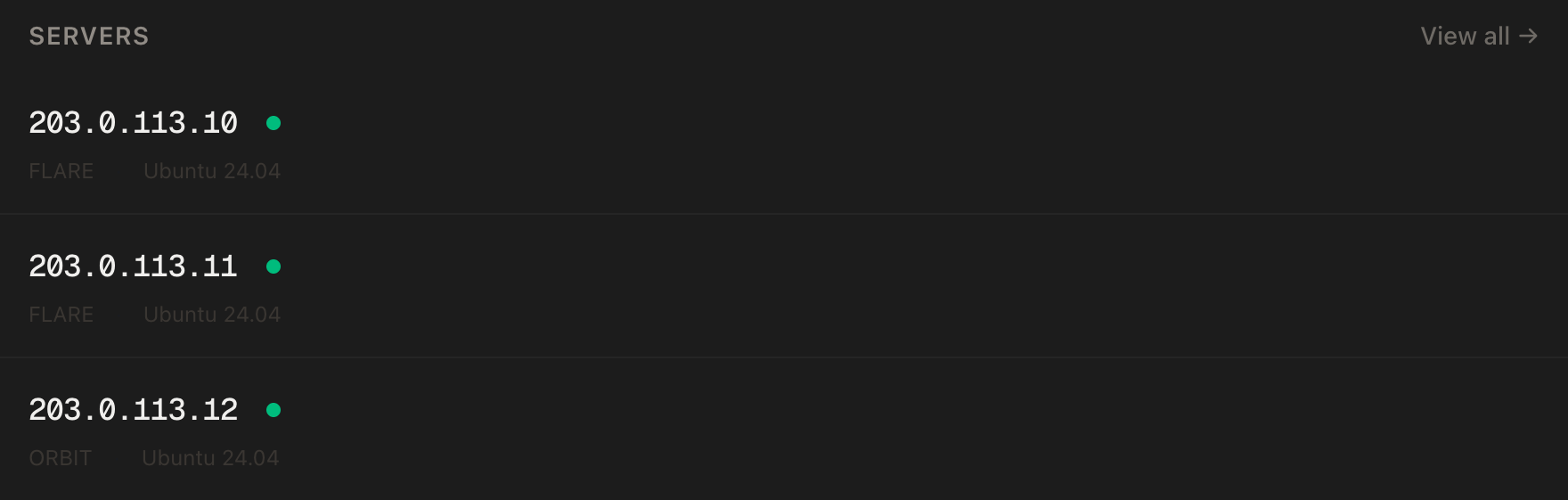
In the PrivateByte dashboard, open the store, choose Flare, pick Ubuntu 24.04, and deploy. It is ready in under 60 seconds. Choose the region nearest where you listen.
Step 2: Point your domain at the server
Do this first, or the certificate step fails.
| Type | Name | Value |
|---|---|---|
| A | books |
your server's IP |
dig +short books.yourdomain.comThat must print your server's IP before you continue.
Step 3: Connect over SSH
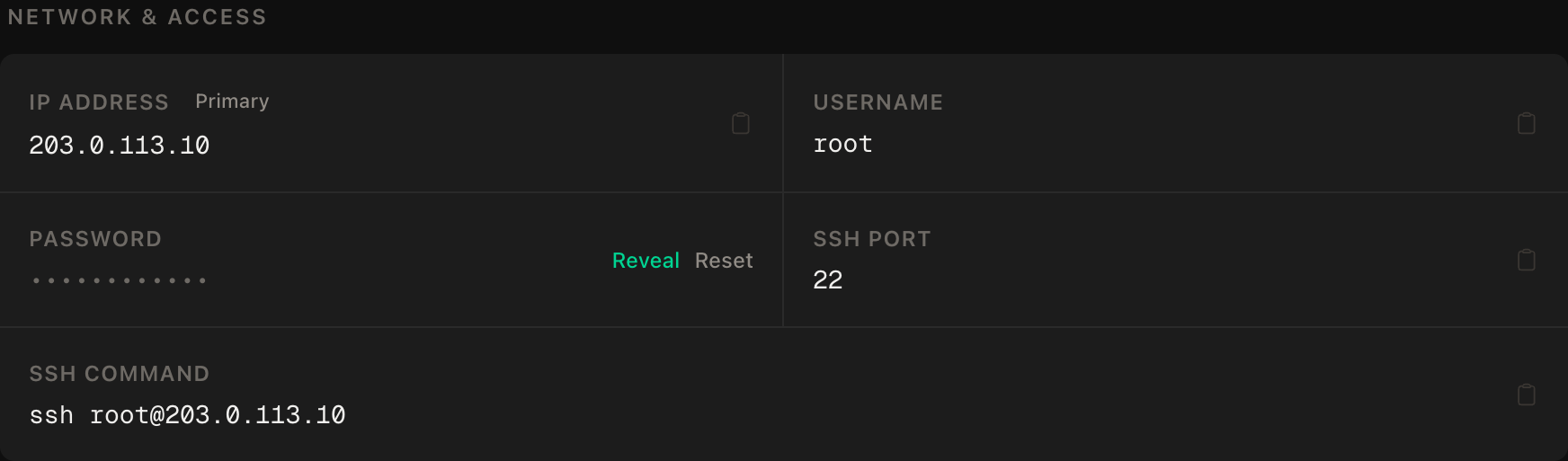
ssh root@YOUR_SERVER_IPOn Windows, PowerShell has ssh built in, or use the dashboard's browser console.
ssh command.Step 4: Install Docker
apt update && apt upgrade -y
curl -fsSL https://get.docker.com -o get-docker.sh
sh get-docker.sh
systemctl enable --now docker
docker --version
docker compose version
Docker's docs call this convenience script a testing and development option. It suits a single-purpose server like this one. On our test server the upgrade took about two minutes and Docker 35 seconds.
Step 5: Set up the firewall
SSH first, then the web ports, then enable. The wrong order locks you out:
ufw allow OpenSSH
ufw allow 80/tcp
ufw allow 443/tcp
ufw --force enable
ufw status
Audiobookshelf's port, 13378, stays closed. Its docs note it serves plain HTTP and leaves encryption to a reverse proxy, so Caddy is the only door in.
Step 6: Write the configuration
mkdir -p ~/audiobookshelf/{audiobooks,podcasts,metadata,config} && cd ~/audiobookshelf
nano docker-compose.yml
services:
audiobookshelf:
image: ghcr.io/advplyr/audiobookshelf:2.37.2
restart: unless-stopped
environment:
- TZ=Europe/London
volumes:
- ./audiobooks:/audiobooks
- ./podcasts:/podcasts
- ./metadata:/metadata
- ./config:/config
caddy:
image: caddy:2-alpine
restart: unless-stopped
ports:
- "80:80"
- "443:443"
volumes:
- ./Caddyfile:/etc/caddy/Caddyfile:ro
- caddy_data:/data
- caddy_config:/config
volumes:
caddy_data:
caddy_config:Set TZ to your time zone. The choices:
- Pinned version. The docs offer
latest,edgeand exact tags. We pin2.37.2, the current stable release. We tested on 2.37.1; 2.37.2 is a bug-fix release that changes nothing in these steps. - No
ports:on Audiobookshelf. The docs map host port 13378 to container port 80. We skip that and let Caddy reach port 80 internally. - Four separate folders. Mounts must not nest.
/configholds the SQLite database and must stay on local disk, never a network share./metadataholds covers, logs and backups. - No
user:line. The image sets no user, so it runs as root. The docs say PUID and PGID variables are not used and suggestuser:instead. If you add it, that user needs write access to all four folders.
Now the Caddyfile, from the project's Caddy page. Audiobookshelf needs a WebSocket connection, and Caddy's reverse_proxy handles WebSockets without extra settings (a test upgrade request through it returned 101 Switching Protocols):
nano Caddyfilebooks.yourdomain.com {
encode gzip zstd
reverse_proxy audiobookshelf:80
}Caddy fetches the certificate for your hostname. Avoid a subfolder, since Audiobookshelf only supports /audiobookshelf.
Step 7: Start it and create the root user
docker compose up -d
docker compose ps
docker compose logs caddy | tail -20
curl -sS https://books.yourdomain.com/status
Straight after up -d, our first curl failed with tlsv1 alert internal error (exit 35) because Caddy had no certificate yet; four seconds later it worked. Retry until it does. -sS shows that error; plain -s hides it. The status response shows "isInit":false until an account exists. There is no default login. You choose the root username and password on first visit, so open https://books.yourdomain.com now and create it with a long, unique password.
Be quick: until a root user exists, anyone reaching the address could claim it. That is our reading of the setup code, not a documented warning. Rerun the curl and confirm "isInit":true.
Step 8: Lay out your books and add a library
Audiobookshelf treats a folder as a book. Single-file books can sit in the library root; all others need their own folder.
/audiobooks
  Author Name/
    Standalone Book Title/
      book.m4b
    Series Name/
      Vol 1 - 2019 - First Book Title {Narrator Name}/
        01.mp3
        02.mp3
        cover.jpg
      Vol 2 - 2021 - Second Book Title/
        book.m4b
The documented patterns are {Author}/{Series}/{Book} or {Author}/{Book}. A series number comes first (1 - Title) or after Vol, Volume or Book, optionally followed by a year, with narrators in curly braces. Multi-disc books can use Disc 1 or CD 2 subfolders.
Get this right before scanning. The classic failure is several books merging into one when loose audio files sit beside book folders. The fix is removing the item and rescanning, which resets progress.
M4B gives one file per book; MP3 plays almost everywhere, though the FAQ mentions seeking issues in very long files. The 2.37.1 image bundles FFmpeg 8.1.2, so xHE-AAC M4B files should scan here, but that decoder can distort audio when transcoding; re-encode to AAC or Opus if you hear it.
We generated tone files in this layout; the container's ffprobe read every file's tags and duration. We did not run a library scan. Upload from your local machine:
rsync -avz --progress ./MyAudiobooks/ root@YOUR_SERVER_IP:~/audiobookshelf/audiobooks/rsync resumes after a dropped connection. The web interface also has an upload that keeps the one-folder-per-book layout; upload a whole folder for a multi-file book, or each file becomes its own book.
Then, in the web interface, add a book library pointing at /audiobooks, the path as the container sees it. Scans read folder names and file tags. Matching against an online provider for covers and descriptions is a manual step.
Step 9: Turn on backups
The backup schedule is off by default: our fresh 2.37.1 install logged Auto Backups are disabled at first start.
On the backups page, set a schedule. Also check the source defaults: it keeps two backups, so raise that to seven or so, and the maximum size is 1 GB, above which a backup is aborted. Raise it or set 0 for unlimited. Take one manual backup now.
Backups land in /metadata/backups, here ~/audiobookshelf/metadata/backups, on the same disk as everything else. Pull them to your own machine:
rsync -avz root@YOUR_SERVER_IP:~/audiobookshelf/metadata/backups/ ./abs-backups/The backups page has a Restore button; prefer it. A manual restore means stopping the container, unzipping the newest backup, replacing the database in config (the docs say audiobookshelf.sqlite; v2.37.1 uses absdatabase.sqlite, which is what our config/ held), and copying metadata-authors and metadata-items over metadata/authors and metadata/items.
Step 10: Add listeners and connect apps
Create one account per person in the server settings. The types are root, admin, user, and guest. New users see all non-explicit content in all libraries unless you restrict them by library or tag.
In the app, enter https://books.yourdomain.com and sign in. Each server or user is a connection profile. Downloads belong to the profile that fetched them, and progress syncs only on that same profile. Reaching the server by another route, such as a VPN address, may mean a different profile and no sync.
Prefer no public exposure? The FAQ names a VPN as the alternative; see our WireGuard guide.
Podcasts
Add a podcast library pointed at /podcasts. Podcasts use flat folders, one file per episode. Add a show by name search, RSS link or OPML import. Only episodes downloaded to the server appear; it is not a pass-through player.
Mind auto-download. It is off by default, and the default is to keep every episode. In a podcast's schedule settings, set a maximum to keep. Deletion removes at most one episode per check and ignores whether anyone listened, so unplayed episodes can go.
Verify it works
docker compose ps
curl -s https://books.yourdomain.com/ping
curl -s https://books.yourdomain.com/status
Both containers should run, /ping should return {"success":true}, and /status should show "isInit":true. Then sign in and play a chapter, skipping around to test seeking.
Confirm the port isolation held, from your local machine:
curl -m 5 http://YOUR_SERVER_IP:13378This must fail. Ours timed out (exit 28), so Audiobookshelf is reachable only through Caddy. If it answers, fix the compose file first. ufw will not save you: when we published 13378 on a test container, it answered HTTP 200 with ufw active and no rule for that port, because Docker bypasses it.
While something plays, check load:
docker stats --no-streamExpect low CPU; sustained high use suggests a scan or transcoding. Finally, reboot, wait a minute, and confirm the site and your progress survive. Ours were back within a minute.
Troubleshooting
Several books show up as one. The layout is wrong, usually loose audio files beside book folders. Fix it, remove the merged item, rescan. Avoid moving files while the file watcher runs.
The library is empty. Check docker compose exec audiobookshelf ls /audiobooks, and that the library path is /audiobooks, not the host path.
An M4B will not scan or sounds distorted. The FAQ's easiest fix is re-encoding to AAC or Opus.
Certificate errors. Caddy's challenge failed. Check dig +short books.yourdomain.com, that ufw status shows 80 and 443, and docker compose logs caddy.
The disk fills up. Run df -h. Usual causes: podcasts kept forever, and optional backup copies from the encode and embed tools, which the docs say sit in the cache. Purge it from the settings.
Forgot the root password. The FAQ's fix is editing the SQLite database with the server stopped, so use a password manager.
Do it with an AI agent
If you'd rather hand this to Claude Code, Cursor, or another coding agent, don't paste the article at it. Copy this instead, and run it from your own machine with your agent able to SSH out.
Prompt for an AI agent
Set up Audiobookshelf (a self-hosted audiobook and podcast server) on a fresh
Ubuntu 24.04 VPS, behind HTTPS, using Docker and Caddy. It is for audiobooks I
own. Do not touch or fetch any media yourself.

FILL IN BEFORE YOU START:
- SERVER_IP = <VPS IP from the PrivateByte dashboard>
- DOMAIN    = <the subdomain, e.g. books.example.com>
- TZ        = <my time zone, e.g. Europe/London>

WHAT TO DO:
1. FIRST, run "dig +short DOMAIN" and confirm it returns SERVER_IP. If not, STOP
   and tell me. The certificate step will fail and everything after is wasted.
2. SSH to root@SERVER_IP. Confirm Ubuntu 24.04. Run "df -h" and tell me the free
   disk, because it is the real capacity limit for an audiobook library.
3. apt update && apt upgrade -y. Install Docker:
       curl -fsSL https://get.docker.com -o get-docker.sh
       sh get-docker.sh
   Then systemctl enable --now docker.
4. Firewall, in THIS EXACT ORDER:
       a) ufw allow OpenSSH
       b) ufw allow 80/tcp
       c) ufw allow 443/tcp
       d) ufw --force enable
   Do NOT open port 13378.
5. Create ~/audiobookshelf/{audiobooks,podcasts,metadata,config} and
   ~/audiobookshelf/docker-compose.yml with two services:
   audiobookshelf (image ghcr.io/advplyr/audiobookshelf:2.37.2, environment TZ
   set to my TZ, restart unless-stopped, NO ports section, bind mounts
   ./audiobooks:/audiobooks, ./podcasts:/podcasts, ./metadata:/metadata,
   ./config:/config) and caddy (caddy:2-alpine, ports 80 and 443, ./Caddyfile
   mounted read-only at /etc/caddy/Caddyfile, named volumes for /data and
   /config).
6. Create ~/audiobookshelf/Caddyfile containing:
       DOMAIN {
           encode gzip zstd
           reverse_proxy audiobookshelf:80
       }
7. docker compose up -d
8. Run "curl -sS https://DOMAIN/status". A TLS handshake error in the first few
   seconds is normal while Caddy fetches the certificate: retry for up to a minute,
   then report it. If it shows "isInit":false, tell me to
   open https://DOMAIN IMMEDIATELY and create the root user myself, because
   until then anyone could claim it. WAIT for me to confirm, then re-run the
   command and confirm "isInit":true.
9. Tell me exactly where in the web interface to (a) add a book library at
   /audiobooks and a podcast library at /podcasts, and (b) turn on the backup
   schedule, raise the number of backups kept, and raise or remove the maximum
   backup size. Explain that the schedule is off by default in v2.37.1.

RULES:
- Never create the root user, a password or any account yourself. I do that in
  the browser. Never print, echo or log a password.
- The ufw ordering in step 4 is not optional. Enabling the firewall before
  allowing OpenSSH locks me out of my own server.
- Do not publish port 13378 or any host port for Audiobookshelf. Only Caddy
  faces the internet.
- Do not add a user: line, and do not put /config on a network share.
- Never delete, move, rename or re-encode anything in the audiobooks or podcasts
  folders.
- Nothing destructive. If ~/audiobookshelf exists or containers are running,
  STOP and ask.

VERIFY, AND SHOW ME THE OUTPUT OF EACH:
- "docker compose ps" -> both containers running
- "docker compose logs caddy | tail -20" -> certificate obtained
- "curl -s https://DOMAIN/ping" -> {"success":true}
- "curl -s https://DOMAIN/status" -> "isInit":true after I create the root user
- THE NEGATIVE CONTROL, run from MY machine, not the server:
      curl -m 5 http://SERVER_IP:13378
  -> this MUST fail or time out. If it answers, Audiobookshelf is exposed
  directly and the compose file is wrong. Stop and tell me.
- reboot, wait 60 seconds, then "docker compose ps" and
  "curl -s https://DOMAIN/ping" -> everything back up on its own

Do not tell me a step succeeded without showing the command output that proves
it. If a verification fails, stop and report the actual error. Do not retry
silently and do not improvise a workaround, especially around the firewall or
anything touching my media.
The agent never creates the root account, so no password passes through a chat log.
The Docker and Caddy pattern matches self-hosting n8n. For video see Jellyfin; for photos, Immich.
Deploy your VPS
Your library on every device, no subscription.
The Flare plan is the honest fit for a personal library. Step up to Orbit for auto-downloaded podcasts or a library past 25 GB.
- Unmetered bandwidth, no overage
- Free DDoS protection
- Daily automated backups
- Browser console access
Common questions
Is Audiobookshelf free? The server is open source, so there is no server subscription. You pay for the VPS and your audiobooks.
Can I use audiobooks I bought from a store? If the files are DRM-free, yes. Many stores sell protected files that only their own apps play, and this guide does not cover removing that.
Does it work on iPhone? Maybe. The official iOS app is a TestFlight beta with limited seats; see the fallbacks near the top.
How big a library fits on Flare? Roughly 70 ten-hour books at 64 kbps or 35 at 128 kbps, with about 21 GB free. Move to Orbit before the disk is full.
Does it need a GPU? No. Serving audio is light. Transcoding uses the bundled ffmpeg, so prefer formats your devices play natively.