Self-hosting Jellyfin gives you a Netflix-style interface for your own media — apps on every TV, phone and browser, watch progress synced across them, no subscription and no catalogue that vanishes. This guide sets it up on a VPS with automatic HTTPS in about 25 minutes, and it starts with the one fact that decides whether this works for you at all.
Using an AI coding agent? There's a ready-made prompt at the end of this guide. Copy that instead of this article.
Read this before you buy anything
Most Jellyfin guides have a section on enabling hardware acceleration. This server has no GPU, so none of that applies here. What matters instead is understanding the difference between Jellyfin's two ways of playing a file, because one of them is nearly free and the other will flatten a small server.
Direct play means the client can handle the file as-is, and the server just ships bytes. That is disk and network, almost no CPU — a $5.99 server can direct-play to several devices at once without noticing.
Transcoding means the client can't play the format, so the server re-encodes the video live. On CPU alone, one 1080p transcode will consume most of a small plan and stutter anyway.
So the whole strategy on a VPS is: set your library up for direct play. Modern clients (the Jellyfin apps, current TVs, browsers) direct-play H.264 in MP4/MKV happily. Keep media in those formats and transcoding simply never triggers. We'll also cap the settings that silently force transcoding, so a misconfigured client degrades politely instead of eating the CPU.
And the storage honesty, same as our Immich guide: movies run 2–8 GB each and full-quality remuxes far more. Orbit's 50 GB holds a rotating, curated library — this month's watching, not a 4 TB hoard. If you have the hoard, a home NAS is the right tool and this article isn't pretending otherwise.
What you'll need
- A PrivateByte VPS. We recommend Orbit ($7.99/mo: 2 vCPU, 4 GB RAM, 50 GB SSD). Flare works for one or two direct-play users; the extra core and disk are what you'd actually miss.
- A domain name you control the DNS for.
- Media in client-friendly formats — H.264 video in MP4 or MKV is the safe default.
- About 25 minutes, plus upload time for your files.
Step 1: Deploy your VPS
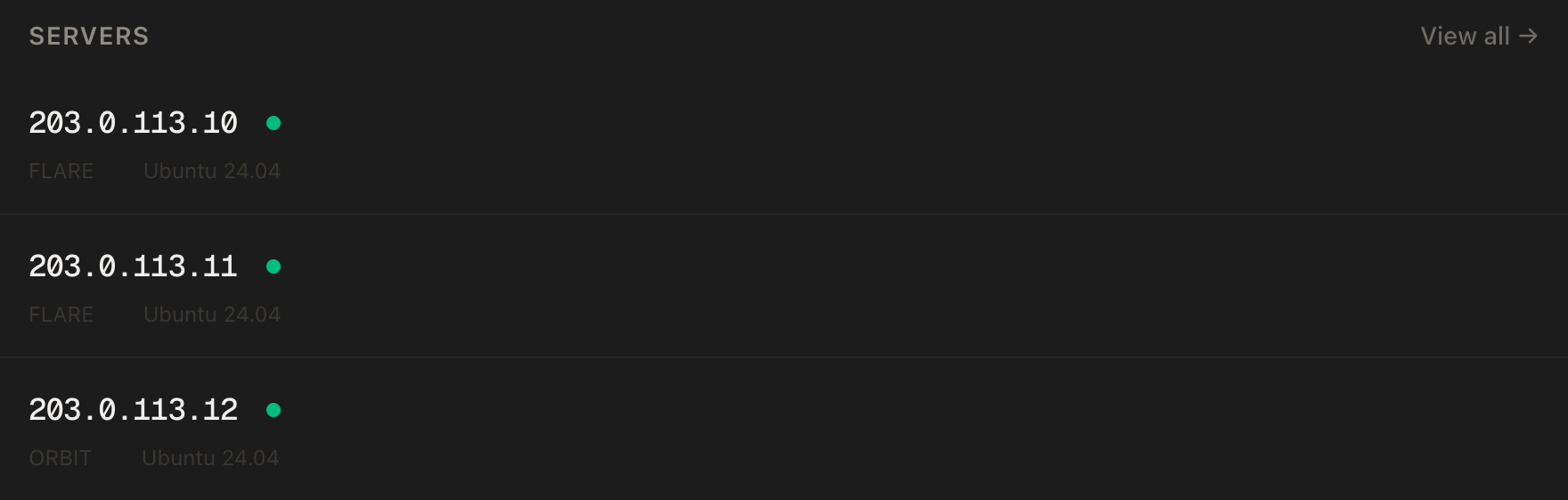
In the PrivateByte dashboard, open the store, choose Orbit, pick Ubuntu 24.04, and deploy. Ready in a few minutes.
Pick the region closest to where you'll watch from — streaming is the one workload where that round trip is felt continuously, not just on click.
Step 2: Point your domain at the server
Do this first — DNS takes a few minutes to propagate and the certificate step fails without it.
| Type | Name | Value |
|---|---|---|
| A | watch |
your server's IP |
dig +short watch.yourdomain.comThat must print your server's IP before you continue.
Step 3: Connect over SSH
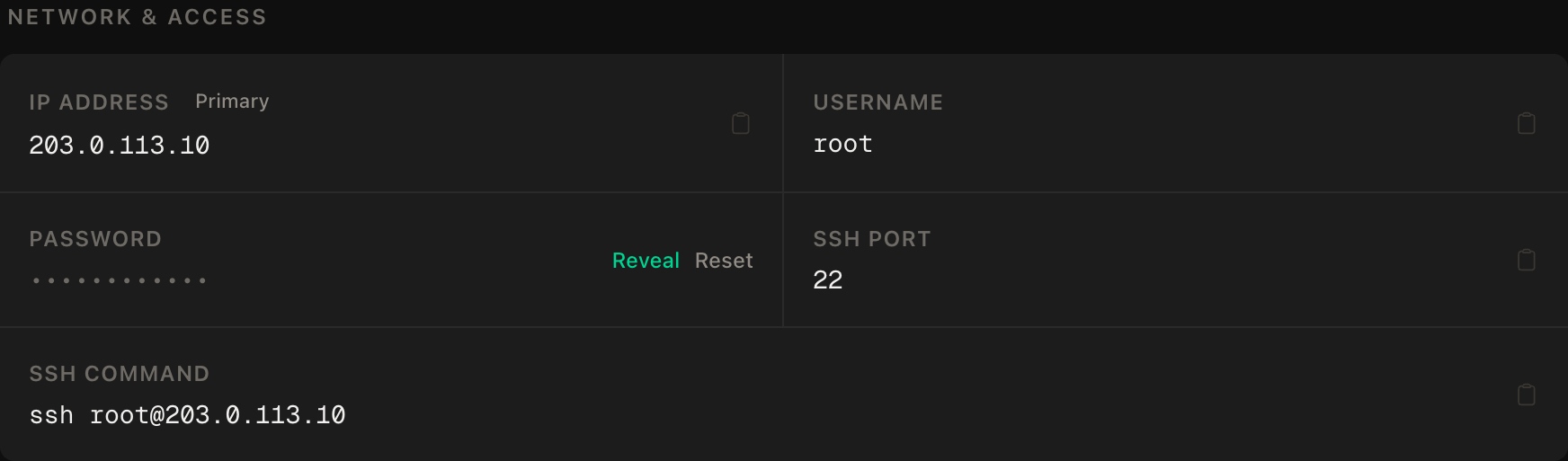
ssh root@YOUR_SERVER_IPWindows users: PowerShell has ssh built in, or use PuTTY. The dashboard also has a browser console if you'd rather install nothing.
ssh command.Step 4: Install Docker
apt update && apt upgrade -y
curl -fsSL https://get.docker.com | sh
systemctl enable --now docker
docker --version
Step 5: Set up the firewall
SSH first, then the web ports, then enable. Wrong order locks you out:
ufw allow OpenSSH
ufw allow 80/tcp
ufw allow 443/tcp
ufw --force enable
ufw status
Port 8096 — Jellyfin's own port — stays closed. It's reachable only through the HTTPS proxy in Step 6.
Step 6: Write the configuration
mkdir -p ~/jellyfin/media && cd ~/jellyfin
nano docker-compose.yml
services:
jellyfin:
image: jellyfin/jellyfin
restart: unless-stopped
volumes:
- jf_config:/config
- jf_cache:/cache
- ./media:/media:ro
caddy:
image: caddy:2-alpine
restart: unless-stopped
ports:
- "80:80"
- "443:443"
volumes:
- ./Caddyfile:/etc/caddy/Caddyfile:ro
- caddy_data:/data
- caddy_config:/config
volumes:
jf_config:
jf_cache:
caddy_data:
caddy_config:Two deliberate choices in there. Jellyfin has no ports: section — only Caddy faces the internet. And the media mount is read-only (:ro): Jellyfin needs to read your files, never to write them, and a media server that can't touch the library is one whole class of bug you'll never meet.
Now the Caddyfile:
nano Caddyfilewatch.yourdomain.com {
reverse_proxy jellyfin:8096
}Use your real hostname — Caddy reads this literally. It forwards the WebSocket headers Jellyfin's live features need without being asked, and it has no default request-size limit to trip over.
Step 7: Start it and run the setup wizard
docker compose up -d
docker compose ps
docker compose logs caddy | tail -20
Both containers running and a certificate obtained. Then open https://watch.yourdomain.com — you get Jellyfin's setup wizard with a valid padlock. Create your admin account, and add a library pointing at /media (that's your ~/jellyfin/media directory as the container sees it).
Two settings to change while you're in the dashboard, both part of the no-GPU strategy:
- Dashboard → Playback → Transcoding: set the transcoding thread count low (2), so a surprise transcode degrades one stream instead of the whole server. There is no hardware-acceleration option worth enabling here — the device it would use doesn't exist on this machine.
- Dashboard → Users → your user → Allowed remote bitrate: cap it at something your plan's uplink and your clients can direct-play, e.g. 20 Mbps. An uncapped client on a bad connection is the most common thing that silently forces transcoding.
Step 8: Upload your media
From your local machine, not the server:
rsync -avz --progress ./Movies/ root@YOUR_SERVER_IP:~/jellyfin/media/Movies/rsync resumes where it left off if the connection drops, which matters at these file sizes; scp starts over. Name files the way Jellyfin's scanner expects — Movie Name (2019).mkv in a folder per film — and the metadata, posters and descriptions appear on their own.
Then tell Jellyfin to scan: Dashboard → Libraries → Scan All Libraries.
Verify it works
Play something — but don't stop at "it plays." While it's playing, open the playback data (the stats overlay in the web player, or the active-streams view in Dashboard). It should say Direct playing.
That word is the whole verification. If it says Transcoding, the server is doing the expensive thing, and you want to know now with one file rather than in a month with a library: check the file's codec, and check the bitrate cap from Step 7 isn't set below the file's bitrate.
Then check the machine's view of the same event:
docker stats --no-streamDuring a direct-play stream, Jellyfin's CPU should be in single digits. That's the number that proves the strategy is working — a transcode shows up here as a core pinned at 100%.
Now confirm the port isolation held. From your local machine:
curl -m 5 http://YOUR_SERVER_IP:8096This must fail. A timeout means Jellyfin is only reachable through Caddy, as designed. If it answers, fix the compose file before going further.
Finally, reboot the server, wait a minute, and confirm playback resumes without you touching anything.
Troubleshooting
Playback stutters or buffers constantly. Open the playback stats. If it says Transcoding, that's the whole story — see the codec and bitrate-cap notes above. If it says Direct playing and still buffers, the path between server and client is the issue: try the bitrate cap one notch lower.
One CPU core sits at 100% whenever someone watches. Something is forcing a transcode: usually subtitles being burned in (use SRT text subtitles, not image-based PGS), an audio codec the client lacks, or a bitrate cap below the file's bitrate.
The library is empty after adding files. The scanner didn't run or the naming defeated it. Trigger a scan manually, and check the files are visible inside the container: docker compose exec jellyfin ls /media.
Certificate errors, or the site won't load over HTTPS. Caddy couldn't complete the Let's Encrypt challenge. Confirm dig +short watch.yourdomain.com returns your IP, ufw status shows 80 and 443 open, and read docker compose logs caddy. Port 80 must be open — the challenge uses it.
The disk fills up. Media plus Jellyfin's generated images and cache. df -h regularly, and treat the library as rotating: rsync new files in, delete watched ones. If you're fighting this weekly, you've outgrown a VPS library — that's the NAS conversation from the top of the guide.
A phone on mobile data can't play what the TV plays fine. The mobile client requested a lower bitrate and triggered a transcode. Either accept the one transcode, or set the app's playback quality to maximum so it direct-plays.
Do it with an AI agent
If you'd rather hand this to Claude Code, Cursor, or another coding agent, don't paste the article at it. Articles are written for humans, and agents skim the warnings and lose the ordering. Copy this instead, and run it from your own machine with your agent able to SSH out.
Prompt for an AI agent
Set up Jellyfin (a self-hosted media server) on a fresh Ubuntu 24.04 VPS, behind
HTTPS, using Docker and Caddy, configured for DIRECT PLAY on a server with no GPU.

FILL IN BEFORE YOU START:
- SERVER_IP = <VPS IP from the PrivateByte dashboard>
- DOMAIN    = <the subdomain, e.g. watch.example.com>

WHAT TO DO:
1. FIRST, run "dig +short DOMAIN" and confirm it returns SERVER_IP. If not, STOP
   and tell me — the certificate step will fail and everything after is wasted.
2. SSH to root@SERVER_IP. Confirm Ubuntu 24.04. Run "df -h" and tell me the free
   disk — it is the real capacity limit for a media library.
3. apt update && apt upgrade -y. Install Docker from https://get.docker.com and
   enable the service.
4. Firewall, in THIS EXACT ORDER:
       a) ufw allow OpenSSH
       b) ufw allow 80/tcp
       c) ufw allow 443/tcp
       d) ufw --force enable
   Do NOT open port 8096.
5. Create ~/jellyfin/media and ~/jellyfin/docker-compose.yml with two services:
   jellyfin (image jellyfin/jellyfin, named volumes at /config and /cache, the
   media directory bind-mounted READ-ONLY at /media, and NO ports section) and
   caddy (caddy:2-alpine, ports 80 and 443, ./Caddyfile mounted read-only, named
   volumes for /data and /config).
   The media mount MUST be :ro. Jellyfin never needs write access to my files.
6. Create ~/jellyfin/Caddyfile containing:
       DOMAIN { reverse_proxy jellyfin:8096 }
7. docker compose up -d
8. Tell me to open https://DOMAIN, complete the setup wizard, create the admin
   account, and add a library at /media. WAIT for me to confirm.
9. Then tell me exactly where to set these two things in the dashboard, and why:
   transcoding threads low (a stray transcode must not take the whole server),
   and a per-user remote bitrate cap (an uncapped client on a weak connection is
   what silently forces transcoding).

RULES:
- This server has NO GPU and no /dev/dri. Do not configure hardware
  acceleration, do not mount render devices, and do not install VA-API or
  NVIDIA tooling. Any guide step that mentions them does not apply here.
- The ufw ordering in step 4 is not optional. Enabling the firewall before
  allowing OpenSSH locks me out of my own server.
- Never delete, move, rename or re-encode anything in the media directory.
- Nothing destructive. If ~/jellyfin exists or containers are running, STOP
  and ask.

VERIFY, AND SHOW ME THE OUTPUT OF EACH:
- "docker compose ps" -> both containers running
- "docker compose logs caddy | tail -20" -> certificate obtained
- "curl -sI https://DOMAIN" -> HTTP 200, TLS handshake succeeded
- THE NEGATIVE CONTROL, run from MY machine, not the server:
      curl -m 5 http://SERVER_IP:8096
  -> this MUST fail or time out. If it answers, Jellyfin is exposed directly and
  the compose file is wrong. Stop and tell me.
- after I upload a test file and play it: "docker stats --no-stream" -> jellyfin
  CPU in single digits, proving direct play rather than transcoding. If a core
  is pinned, tell me it is transcoding and which of the two settings in step 9
  to check first.
- reboot, wait 60 seconds, then "docker compose ps" and "curl -sI https://DOMAIN"
  -> everything back up on its own

Do not tell me a step succeeded without showing the command output that proves
it. If a verification fails, stop and report the actual error. Do not retry
silently and do not improvise a workaround, especially around the firewall or
anything touching the media directory.
Two things in that prompt are worth stealing for your own agent work. It rules out an entire family of plausible-looking steps up front — hardware acceleration is in every Jellyfin guide the agent has ever ingested, and on this hardware all of it is a dead end. And the playback check verifies with docker stats rather than "does it play", because a transcoding server plays files perfectly right up until the second viewer arrives.
The Docker, Caddy and automatic-HTTPS pattern here is the same one used for self-hosting n8n, and if your library is photos rather than films, self-hosting Immich is this guide's sibling — including the same honesty about storage.
Deploy your VPS
A direct-play Jellyfin on a VPS is a lovely thing: your films and shows, on every device you own, from anywhere, with no subscription and nobody's catalogue decisions but yours.
The Orbit plan is the honest fit — the second vCPU absorbs a stray transcode, and 50 GB holds a genuinely useful rotating library.
- Unmetered bandwidth, no overage
- Free DDoS protection
- Daily automated backups
- Browser console access
Common questions
Jellyfin or Plex? Jellyfin is fully free and open source with no account, no phone-home and no feature paywall; Plex is slicker in places but increasingly subscription-shaped. For self-hosting on your own VPS, Jellyfin is the natural fit — nothing in it is rented.
Can it really stream well without a GPU? Yes — provided you stay in direct play, which this guide is built around. The server is then just reading a file and sending it, which is the easiest work a computer does. It's transcoding that needs the GPU you don't have.
How much can one server handle? Several simultaneous direct-play streams on Orbit without strain — the constraint is your plan's bandwidth divided by the streams' bitrates, not CPU. Transcodes are the opposite: budget roughly one per two fast cores, which on these plans means "avoid them".
Is streaming my own media legal? Ripping media you own for personal use sits in a grey-to-tolerated zone in most places, and streaming it privately to yourself doesn't change that. Sharing beyond your household is where real trouble starts. Know your jurisdiction; this isn't legal advice.
Where do subtitles fit in? Use text-based SRT files named to match the video file. Image-based subtitle formats (PGS, VobSub) are the classic hidden transcode trigger — the server has to burn them into the picture, and there goes a CPU core.