OpenClaw is the open-source AI agent that runs on your own machine and meets you in the chat apps you already use — Telegram, Slack, WhatsApp and more — and actually does things: shell commands, browser automation, files, calendars. MIT-licensed, no paid tier. The catch is in "your own machine": an agent that's supposed to be always on can't live on a laptop that sleeps. This guide installs it on a VPS in about 25 minutes, running as a service, reachable by you and nobody else.
Using an AI coding agent? There's a ready-made prompt at the end of this guide. Copy that instead of this article.
The two rules this guide is built on
The gateway is never public. OpenClaw's gateway — the process that talks to your chat apps and runs tools — listens on port 18789. Out of the box it binds to 127.0.0.1 only and requires an auth token, and the project's own hosting docs say the same thing we do: do not expose 18789 to the internet. You reach the dashboard through an SSH tunnel (or a VPN), and the chat channels reach the agent outbound, so nothing needs to be open.
The agent runs as its own user, with its own capped key. OpenClaw executes shell commands on your behalf. On a box where it's the only tenant, running as an unprivileged user with a dedicated, spend-limited API key turns "the agent did something silly" into a bounded, recoverable event — the argument from our agent-server guide, applied.
What you'll need
- A PrivateByte VPS. We recommend Orbit ($7.99/mo: 2 vCPU, 4 GB RAM, 50 GB SSD) — the Node runtime plus the gateway plus a browser tool is comfortable there. Flare (2 GB) runs it without the browser.
- An API key for your model provider (Anthropic, OpenAI, or a local model via Ollama), created for this agent, with a spend limit set.
- A Telegram account for the fastest channel to test with — a bot token from BotFather takes a minute.
- About 25 minutes.
Step 1: Deploy your VPS
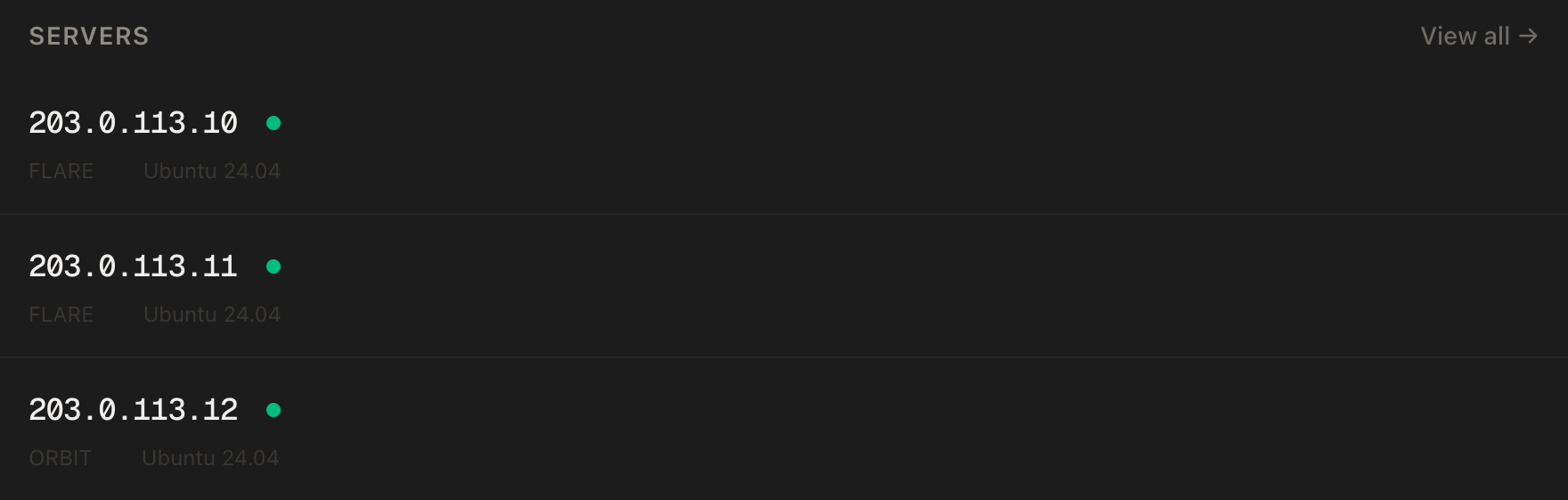
In the PrivateByte dashboard, open the store, choose Orbit, pick Ubuntu 24.04, and deploy. Ready in a few minutes.
Step 2: Connect, firewall, and the agent's user
ssh root@YOUR_SERVER_IP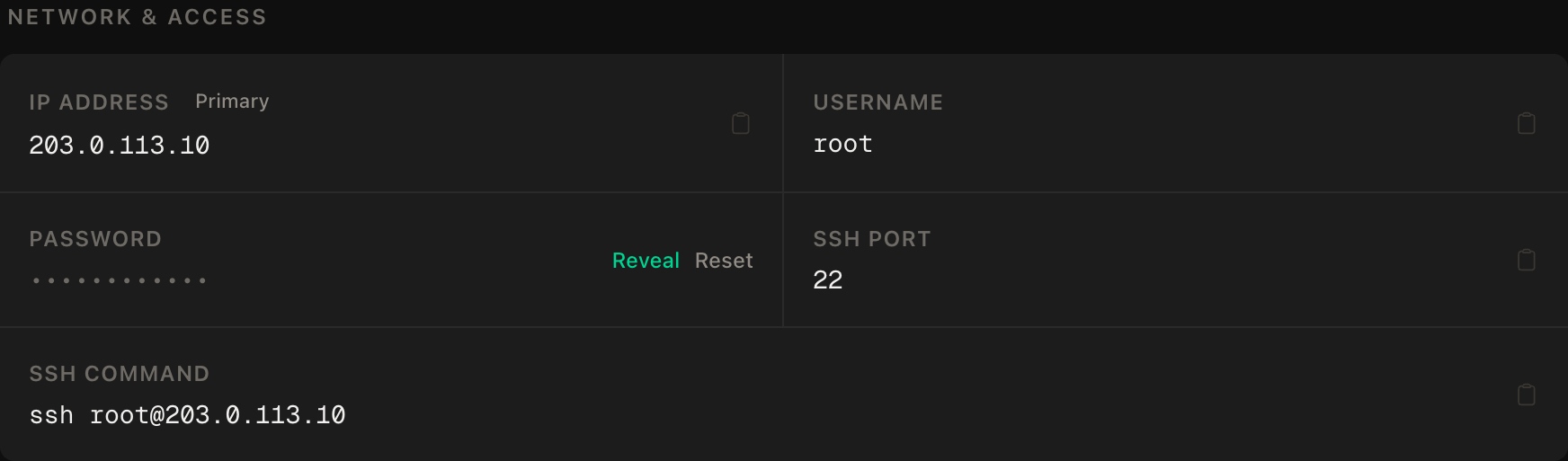
ssh command.SSH first, then enable. No other ports — rule one:
apt update && apt upgrade -y
apt install -y git curl ca-certificates
ufw allow OpenSSH
ufw --force enable
adduser --disabled-password --gecos "" claw
rsync --archive --chown=claw:claw ~/.ssh /home/claw
loginctl enable-linger claw
That last line matters and most guides miss it: OpenClaw installs itself as a systemd user service, and a user service only runs while that user has a session — unless lingering is enabled. Without it, the agent dies when you log out.
Step 3: Install OpenClaw
As claw (su - claw), the project's one-line installer — it installs Node.js if the box doesn't have a recent one:
curl -fsSL https://openclaw.ai/install.sh | bash --no-onboard
openclaw --version(--no-onboard skips the wizard for now so we can run it deliberately in the next step. If you'd rather manage Node yourself: npm install -g openclaw@latest --allow-scripts=openclaw does the same.)
Step 4: Onboard — and install the daemon
openclaw onboard --install-daemonThe wizard asks for your model provider and API key — paste the dedicated, capped key from What you'll need — and sets the gateway's auth token. --install-daemon registers the systemd user service so the gateway starts at boot and restarts if it crashes. When it finishes:
openclaw doctor
openclaw gateway status
curl -fsS http://127.0.0.1:18789/healthz
doctor checks the install, status confirms the service, and the health endpoint answering on 127.0.0.1 is the gateway alive — on loopback, as designed.
Everything the agent knows lives under ~/.openclaw (the config is ~/.openclaw/openclaw.json). Keep it private:
chmod 700 ~/.openclawStep 5: Reach the dashboard — through a tunnel, not a port
From your laptop:
ssh -N -L 18789:127.0.0.1:18789 claw@YOUR_SERVER_IPThen open http://127.0.0.1:18789/ locally and enter the gateway token from onboarding. The tunnel carries the traffic; it does not bypass the token — the project is explicit about that, and it's the right design: two locks, not one.
If the tunnel connects but the page doesn't load, the server's SSH daemon may have port forwarding disabled; as root, make sure /etc/ssh/sshd_config has AllowTcpForwarding local, then sshd -t && systemctl restart ssh.
Step 6: Connect Telegram — with pairing
As claw:
openclaw channels add telegramPaste the BotFather token. Now message your bot from your own Telegram account: the first DM isn't answered — it's held for approval. That's OpenClaw's default DM policy, pairing, and it's the feature that makes a bot on the public Telegram network safe to run: strangers who find it get silence, not a free agent on your API key. Approve your own pairing (the CLI or dashboard shows the request), send another message, and you're talking to your agent.
For groups, add the bot and use groupPolicy / groupAllowFrom in the config to say exactly which groups it may act in; in groups it answers only when mentioned.
Verify it works
It answers you. A DM after pairing gets a reply; ask it to run uname -a and it shows the server's kernel line — proof the tools work, as claw, on this box.
It ignores strangers — the negative control. From a second Telegram account (or a friend's), DM the bot. Nothing should come back except, at most, a pairing prompt on your side. If a stranger gets an answer, the DM policy was changed from pairing; put it back before anything else.
The gateway is not public. From your laptop, with the tunnel closed:
curl -m 5 http://YOUR_SERVER_IP:18789/healthzThis must fail. A timeout is the loopback bind and the firewall both holding. Any response means one of them changed.
It survives a reboot — and a logout. As root, reboot; wait a minute; without logging in as claw, DM the bot. It answers. That's the daemon plus lingering working together.
Troubleshooting
Bot answers while you're logged in, dies when you log out. Lingering isn't enabled: loginctl enable-linger claw as root, then openclaw gateway restart as claw.
openclaw gateway status says not running after a reboot. Same cause as above, or the daemon wasn't installed — re-run openclaw onboard --install-daemon, or openclaw gateway install on its own.
refusing to bind gateway … without auth in the logs. Something set the bind to non-loopback without a token. Keep it loopback; the tunnel is the access method. openclaw logs --follow shows the full line.
Telegram bot never responds, not even a pairing prompt. Token rejected or polling isn't running: openclaw logs --follow while you send a message. Re-add the channel with a fresh BotFather token if the log says the token is invalid.
Dashboard tunnel connects, page times out. AllowTcpForwarding is off on the server (see Step 5), or you opened the tunnel as root while the gateway runs as claw — the gateway is on 127.0.0.1 either way, so the tunnel user only needs to be able to SSH in.
High memory, or the box swaps. A browser tool is running. Fine on Orbit; on Flare, disable the browser tool or move up a plan — that's the 2 GB caveat from the top.
The agent ran something you didn't expect. That's what the unprivileged user and the capped key are for. Snapshot the box before the first unattended day, the way our agent-server guide describes, and revoke the key first if it ever needs to stop now.
Do it with an AI agent
If you'd rather hand this to Claude Code, Cursor, or another coding agent, don't paste the article at it. Articles are written for humans, and agents skim the warnings and lose the ordering. Copy this instead, and run it from your own machine with your agent able to SSH out.
Prompt for an AI agent
Install OpenClaw (the open-source AI agent runtime) on a fresh Ubuntu 24.04 VPS
as an unprivileged user, running as a systemd user service that survives
reboots and logouts, gateway on loopback only, dashboard reached by SSH tunnel.

FILL IN BEFORE YOU START:
- SERVER_IP = <VPS IP from the PrivateByte dashboard>
- The model API key and the Telegram bot token are MINE. You never see them;
  I type them into the wizard myself.

WHAT TO DO:
1. SSH to root@SERVER_IP. Confirm Ubuntu 24.04 and run "free -m"; tell me the
   RAM (below 4 GB: warn me to skip the browser tool).
2. apt update && apt upgrade -y; install git, curl, ca-certificates.
3. Firewall: "ufw allow OpenSSH" FIRST, then "ufw --force enable". Open
   nothing else — especially not 18789.
4. Create user "claw" (no password, no sudo), copy root's authorized_keys to
   it with correct ownership, and run "loginctl enable-linger claw".
5. As claw: "curl -fsSL https://openclaw.ai/install.sh | bash --no-onboard",
   then "openclaw --version".
6. Tell me to run "openclaw onboard --install-daemon" as claw myself (it asks
   for the API key). WAIT for my confirmation that it finished.
7. As claw: "openclaw doctor", "openclaw gateway status",
   "curl -fsS http://127.0.0.1:18789/healthz", "chmod 700 ~/.openclaw".
8. Confirm /etc/ssh/sshd_config permits local TCP forwarding
   ("AllowTcpForwarding local" or the default yes); if you change it,
   "sshd -t" before "systemctl restart ssh".
9. Tell me to run "openclaw channels add telegram" as claw (it asks for the
   bot token) and to approve my own first DM (pairing). WAIT.

RULES:
- Never print, echo, cat or log ~/.openclaw/openclaw.json, any token, or any
  key. To confirm the gateway token exists, use "openclaw doctor" only.
- The gateway stays bound to 127.0.0.1. Never change the bind, never open
  18789 in ufw, never disable gateway auth — not even to test.
- Do not change the Telegram DM policy from "pairing".
- The claw user gets no sudo.
- Nothing destructive. If user claw or ~/.openclaw already exists, STOP and ask.

VERIFY, AND SHOW ME THE OUTPUT OF EACH:
- "openclaw gateway status" as claw -> running
- "curl -fsS http://127.0.0.1:18789/healthz" on the server -> OK
- "loginctl show-user claw -p Linger" -> Linger=yes
- THE NEGATIVE CONTROL, from MY machine, no tunnel:
      curl -m 5 http://SERVER_IP:18789/healthz
  -> MUST fail or time out. Any response means the gateway is exposed; stop
  and tell me.
- I confirm: my DM gets an answer after pairing; a DM from a second account
  gets nothing.
- reboot, wait 90 s, then WITHOUT logging in as claw I confirm the bot answers;
  then "openclaw gateway status" as claw -> running

Do not tell me a step succeeded without showing the command output that proves
it. If a verification fails, stop and report the actual error. Do not retry
silently and do not improvise a workaround — in particular never widen the
bind, open the port, or relax pairing to make a check pass.
Two things in that prompt are worth stealing for your own agent work. Every step that touches a secret is handed back to the human — the agent installs, the human onboards — so the setup agent never has your model key or bot token in its context. And the reboot test is done without logging in, because the failure it's looking for (a user service without lingering) only shows up when nobody's watching, which is exactly when your agent is supposed to be working.
OpenClaw is one of the agents PrivateByte is building one-click hosting for; until that's live, this is the setup, on a standard VPS. If you'd rather write the agent yourself, running Claude Code on a VPS and the AI Telegram bot guide are the DIY siblings, on the same disposable-box footing.
Deploy your VPS
An agent that's in your Telegram at 3am, on a server that doesn't close its lid, that answers you and ignores everyone else — with a key you capped and a box you can wipe. That's what OpenClaw was built for, and a VPS is the machine it was built to run on.
The Orbit plan is the comfortable fit — room for the runtime and a browser tool.
- Daily automated backups
- Unmetered bandwidth, no overage
- Free DDoS protection
Common questions
What does OpenClaw actually cost to run? The software is free (MIT, no paid tier). You pay for the VPS and for model usage on your own key — cents a day for a personal assistant, which is why the guide insists on a dedicated key with a spend limit.
Why not run it on my laptop or a Raspberry Pi? You can, and the project supports both. A laptop sleeps; a Pi at home is fine until you need it from outside, at which point you're building the VPN this guide skips. A VPS is on, addressable and disposable — the three things an always-on agent needs.
Can I use a local model instead of an API key? Yes — OpenClaw supports Ollama. On these plans that means small models on CPU; our Ollama guide is honest about what runs well. For most people the API key with a cap is the better first setup.
Is the SSH tunnel really necessary? It's the simplest sanctioned method; the project prefers a VPN like Tailscale for daily use, which our WireGuard guide gets you the self-hosted way. What's not on the list is opening 18789 to the internet — the gateway refuses to bind publicly without auth for a reason.
What happens if the agent does something destructive?
It can only touch what claw can touch, and the API key is capped. Take a snapshot before the first unattended day; restoring it is your undo. Treat the bot token and the key as the two things to revoke first if you ever need it to stop immediately.