AdGuard Home is the other self-hosted DNS blocker — ads and trackers stripped for every device, plus the feature that earns it a place next to Pi-hole: encrypted upstream DNS built in, no extra tooling. Run it on a VPS behind WireGuard and every device you own gets filtered, encrypted DNS anywhere in the world. About 25 minutes, and the same security decision our Pi-hole guide is built on — because it's the same trap.
Using an AI coding agent? There's a ready-made prompt at the end of this guide. Copy that instead of this article.
AdGuard Home or Pi-hole — the honest comparison
We've published a full Pi-hole guide; both tools block at the DNS level and both do it well. Where they actually differ:
| AdGuard Home | Pi-hole | |
|---|---|---|
| Ad & tracker blocking | Yes | Yes |
| Encrypted upstream DNS (DoH/DoT) | Built in | Needs a sidecar tool |
| Per-client rules & parental controls | Built in | Limited |
| Setup shape | Single binary, one container | Established, huge community |
| Ecosystem & third-party tooling | Smaller | The standard |
The one-line version: pick AdGuard Home when encrypted upstream and per-device rules matter to you; pick Pi-hole when you want the biggest community around the most established tool. And if you already run Pi-hole happily — stay; nothing here justifies a migration for its own sake.
The same warning as the Pi-hole guide, because it's the same trap
A DNS server on a VPS that answers the whole internet is an open resolver, and open resolvers get found by internet-wide scans within hours and conscripted into DNS amplification attacks — abuse reports and a suspended server follow. Most "on a VPS" guides publish port 53 to 0.0.0.0 and never mention it.
So, exactly as in our Pi-hole article: everything binds to the WireGuard interface only. Devices reach the resolver through the VPN; from the public internet, the ports don't exist. No domain, no certificates, no reverse proxy — nothing here is public, including the admin panel.
What you'll need
- A PrivateByte VPS with WireGuard already running. Our WireGuard guide is the prerequisite, and this article assumes its layout: VPN
10.8.0.0/24, server at10.8.0.1. - The Flare plan ($5.99/mo: 1 vCPU, 2 GB RAM, 25 GB SSD) — AdGuard Home is a single Go binary and shares the WireGuard box happily.
- About 25 minutes. Every command is copy-paste.
Step 1: Confirm WireGuard is up
ip -brief addr show wg0You want wg0 with 10.8.0.1/24. If that errors, do the WireGuard guide first — every bind below depends on that address existing.
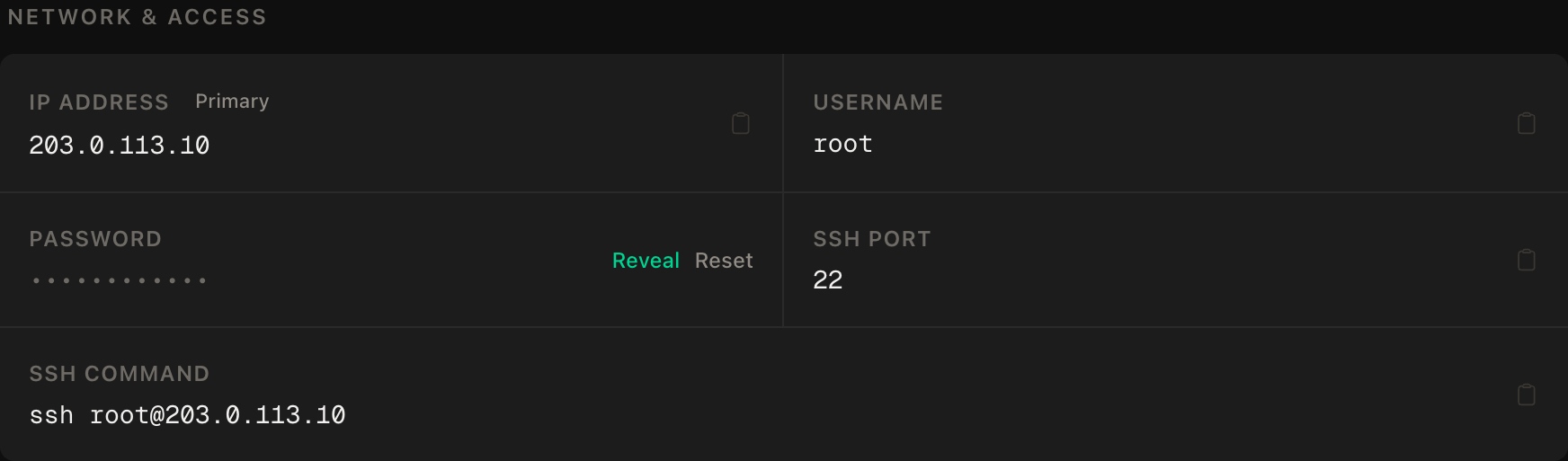
ssh command.Step 2: Free up port 53 — carefully
Ubuntu's systemd-resolved holds port 53, and the naive fix leaves the server itself unable to resolve names, at which point apt and docker pull fail with errors that point everywhere except here. Same fix as the Pi-hole guide, including the check that matters:
mkdir -p /etc/systemd/resolved.conf.d
nano /etc/systemd/resolved.conf.d/adguardhome.conf
[Resolve]
DNSStubListener=no
DNS=1.1.1.1 1.0.0.1ln -sf /run/systemd/resolve/resolv.conf /etc/resolv.conf
systemctl restart systemd-resolvedVerify both halves before moving on:
ss -tulnp | grep ':53 ' || echo "port 53 is free"
getent hosts github.com
Nothing on 53, and the hostname resolves. If the second check fails, undo the symlink and restart systemd-resolved before touching anything else.
Step 3: Install Docker
apt update && apt upgrade -y
curl -fsSL https://get.docker.com | sh
systemctl enable --now docker
docker --version
If apt failed here, Step 2's second check wasn't actually passing. Go back.
Step 4: Write the configuration
mkdir -p ~/adguard && cd ~/adguard
nano docker-compose.yml
services:
adguardhome:
image: adguard/adguardhome
restart: unless-stopped
ports:
- "10.8.0.1:53:53/tcp"
- "10.8.0.1:53:53/udp"
- "10.8.0.1:3000:3000/tcp"
- "10.8.0.1:80:80/tcp"
volumes:
- ./work:/opt/adguardhome/work
- ./conf:/opt/adguardhome/confThe 10.8.0.1: prefix on every line is the entire security model — leave it off and Docker publishes to every interface, and you've built the open resolver from the top of this guide. One nine-character prefix per line between a private resolver and an abuse report.
The ports, for the record: 53 is DNS, 3000 serves the one-time setup wizard, and 80 is where the admin interface will live after the wizard. All three exist only on the VPN.
Step 5: Start it and run the wizard
docker compose up -d
docker compose ps
Confirm the binding did what it claims before going further:
ss -tulnp | grep ':53 'Every line must say 10.8.0.1:53. Any 0.0.0.0 means the ports: block lost its prefixes — fix that before the wizard, not after.
Now, with the VPN connected on your laptop, open http://10.8.0.1:3000. The wizard asks two things that matter: set the admin web interface to port 80 and leave DNS on 53 (interface choices inside the container are fine as "all" — the compose bindings are the real gate). Create the admin account with a genuinely strong password.
From here on, the dashboard lives at http://10.8.0.1 — VPN only, like everything else.
Step 6: Turn on encrypted upstream — the reason you picked AdGuard
In the dashboard: Settings → DNS settings → Upstream DNS servers, and replace the plain-IP defaults with an encrypted upstream:
https://dns.cloudflare.com/dns-queryClick Test upstreams and save. This is the differentiating step: your queries to the upstream resolver now travel inside TLS, so neither the datacenter network nor anyone on-path sees your DNS in plaintext. Full chain: your phone → WireGuard (encrypted) → AdGuard Home → DoH (encrypted) → upstream. On Pi-hole this hop is the part that needs an extra tool; here it's a settings field.
Step 7: Point your VPN clients at it
On each WireGuard client config, set DNS in the [Interface] section:
DNS = 10.8.0.1Reconnect the client. Same note as the Pi-hole guide: with AllowedIPs = 0.0.0.0/0 everything already routes through the tunnel; with a narrower split-tunnel, your DNS still flows to 10.8.0.1 while general traffic goes direct — a legitimate setup, worth knowing which one you're in.
Verify it works
Three checks; the third is the one that keeps your server.
It answers over the VPN. With the VPN connected:
dig @10.8.0.1 example.com +shortIt actually blocks.
dig @10.8.0.1 doubleclick.net +short0.0.0.0 or empty is a block. Watch the query land in the dashboard while you're at it.
The negative control: it must NOT answer the internet. Disconnect the VPN, then from your machine:
dig @YOUR_SERVER_PUBLIC_IP example.com +shortA timeout or refusal is the correct result. An answer means you're running an open resolver — stop, fix the compose bindings, recreate the container, and run this check again before anything else. The first two checks prove it works for you; only this one proves it doesn't work for the entire internet, and those are different claims.
Then reboot, wait two minutes, reconnect the VPN and re-run the block check. Docker can race WireGuard at boot; restart: unless-stopped retries until wg0 exists, and you want to have watched it recover once rather than assumed.
Troubleshooting
docker compose up fails with "cannot assign requested address". wg0 is down, so 10.8.0.1 doesn't exist to bind. Bring WireGuard up first. (A different error — "address already in use" — means Step 2's stub listener is back; re-check it.)
Devices connect to the VPN but ads still show. The client isn't asking AdGuard: check DNS = 10.8.0.1 in the client [Interface], reconnect, and on Android check "Private DNS" is off — that's the phone doing its own encrypted DNS to a third party, straight past your resolver.
The wizard at :3000 won't load. VPN connected? It's bound to 10.8.0.1, so from anywhere else there is nothing to load — that's the design working. If you're on the VPN and it still fails, docker compose logs adguardhome.
Upstream test fails after switching to DoH. The server needs to resolve dns.cloudflare.com itself to bootstrap — the wiki's bootstrap DNS field covers this; set it to 1.1.1.1 and retest.
A site you need broke. Find it in the query log, whitelist the domain in Filters, reload. Fixing one domain beats turning filtering off.
The server itself lost internet after Step 2. The /etc/resolv.conf symlink — point it at /run/systemd/resolve/resolv.conf and restart systemd-resolved. Until then, everything that resolves names fails confusingly.
Do it with an AI agent
If you'd rather hand this to Claude Code, Cursor, or another coding agent, don't paste the article at it. Articles are written for humans, and agents skim the warnings and lose the ordering. Copy this instead, and run it from your own machine with your agent able to SSH out.
Prompt for an AI agent
Set up AdGuard Home on a VPS that is ALREADY running WireGuard, bound to the
VPN interface only, never reachable from the public internet, with an encrypted
(DoH) upstream.

FILL IN BEFORE YOU START:
- SERVER_IP = <VPS public IP from the PrivateByte dashboard>
- VPN_IP    = <the server's WireGuard address, 10.8.0.1 in our guide>

THE ONE RULE THAT MATTERS MORE THAN THE REST:
Every published port must be bound to VPN_IP explicitly. A DNS resolver open to
the public internet is found by scans within hours and used for amplification
attacks, and the server gets suspended. If a bind to VPN_IP fails, STOP and
tell me — never fall back to 0.0.0.0.

WHAT TO DO:
1. SSH to root@SERVER_IP. Confirm Ubuntu 24.04.
2. "ip -brief addr show wg0" — confirm VPN_IP is present. If wg0 does not
   exist, STOP: WireGuard is the prerequisite.
3. Free port 53 from systemd-resolved: create
   /etc/systemd/resolved.conf.d/adguardhome.conf with DNSStubListener=no and
   DNS=1.1.1.1 1.0.0.1, symlink /etc/resolv.conf to
   /run/systemd/resolve/resolv.conf, restart systemd-resolved — and IMMEDIATELY
   verify with "getent hosts github.com". If that fails, revert and tell me;
   with server DNS broken, every later step fails misleadingly.
4. Install Docker from https://get.docker.com.
5. Create ~/adguard/docker-compose.yml: image adguard/adguardhome,
   restart unless-stopped, volumes ./work:/opt/adguardhome/work and
   ./conf:/opt/adguardhome/conf, ports bound EXPLICITLY to VPN_IP:
   "VPN_IP:53:53/tcp", "VPN_IP:53:53/udp", "VPN_IP:3000:3000/tcp",
   "VPN_IP:80:80/tcp".
6. docker compose up -d, then verify with "ss -tulnp | grep ':53 '" that every
   line shows VPN_IP:53. Any 0.0.0.0 line: stop immediately and tell me.
7. Tell me to open http://VPN_IP:3000 with my VPN connected, set the admin web
   interface to port 80, keep DNS on 53, and create the admin account. WAIT
   for my confirmation.
8. Tell me where to set the upstream to https://dns.cloudflare.com/dns-query
   (Settings -> DNS settings), with bootstrap DNS 1.1.1.1, and to run the
   upstream test. WAIT for confirmation.

RULES:
- Do not modify /etc/wireguard/wg0.conf or restart WireGuard — I may be
  connected through it right now.
- Do not add or edit ufw rules; SSH and the VPN already work.
- Never create the admin account or choose its password — that is mine.
- Do not add blocklists or clients; defaults first, my tuning later.
- Nothing destructive. If ~/adguard exists or an adguardhome container is
  running, STOP and ask.

VERIFY, AND SHOW ME THE OUTPUT OF EACH:
- "getent hosts github.com" on the server -> resolves (step 3 didn't break
  the server's own DNS)
- "docker compose ps" -> running
- "ss -tulnp | grep ':53 '" -> every line VPN_IP:53, none 0.0.0.0
- with my VPN connected: "dig @VPN_IP example.com +short" -> an address, and
  "dig @VPN_IP doubleclick.net +short" -> 0.0.0.0 or empty (blocking active)
- THE NEGATIVE CONTROL, from MY machine with the VPN DISCONNECTED:
      dig @SERVER_IP example.com +short
  -> MUST time out or be refused. An answer means an open resolver on the
  public internet: stop everything and tell me.
- reboot, wait 120 seconds, reconnect VPN, repeat the block check — Docker can
  race WireGuard at boot; confirm it recovered rather than assuming.

Do not tell me a step succeeded without showing the command output that proves
it. If a verification fails, stop and report the actual error. Do not retry
silently and do not improvise a workaround — in particular, never publish a
port on all interfaces to "get it working first".
Two things in that prompt are worth stealing for your own agent work. The unacceptable outcome is stated before any step, with the specific forbidden fallback named — because publishing on 0.0.0.0 is exactly what a helpful agent does when a bind fails, and here that helpfulness converts a private resolver into an abuse magnet. And the server's own DNS gets verified the moment it's touched, because breaking it doesn't fail loudly — it makes every later step fail with errors that point somewhere else.
This guide leans on setting up WireGuard as its foundation, and the Pi-hole guide is the same architecture with the other resolver — read both comparisons and pick once.
Deploy your VPS
Filtered, encrypted DNS on every device you own, from a box that also runs your VPN — this is the most value per dollar in the whole self-hosting catalogue.
The Flare plan runs WireGuard and AdGuard Home together without noticing either.
- Unmetered bandwidth, no overage
- Free DDoS protection
- Daily automated backups
- Browser console access
Common questions
Should I switch from Pi-hole to this? If Pi-hole is working for you, no — switching costs an afternoon and buys you a sidebar redesign. Choose AdGuard Home when starting fresh and encrypted upstream or per-client rules are on your list; that's where it's genuinely ahead out of the box.
What does encrypted upstream actually protect me from? Without it, your resolver asks the upstream in plaintext — readable by any network between your VPS and theirs. With DoH, that hop is inside TLS. Combined with WireGuard on the device side, no leg of your DNS travels readable. It's privacy from on-path observers, not anonymity from the upstream itself — they still answer your queries.
Can I run this and Pi-hole side by side to compare? On different VPN IPs or different boxes, sure — point one test device at each. On the same address they'd fight over port 53. Most people trial for a week and keep one; the blocking results will be near-identical, the deciding features are the ones in the table.
Does per-client filtering work through WireGuard? Yes, and it's one of the nicer reasons to pick AdGuard: each VPN peer has a stable tunnel IP, so "the kid's tablet gets safe search and bedtime rules, my laptop doesn't" is genuinely configurable under Settings → Client settings.
What happens if the VPS goes down? Devices pointed at it lose DNS, which looks like the whole internet failing. A secondary DNS in the client config keeps you online but leaks around the filtering while it's used. If uptime matters, monitor the box from somewhere else so you hear about it first.